Additional App Features
Explore additional functions and settings available in the Fordex app.
Uploading Avatar
You can set your profile photo:
- Open the Settings screen (tap the
 icon in the top right corner of Orders)
 - At the top of the screen, find the profile card
- Tap on the circular avatar area
- Choose the source:
- "Take Photo" — take a photo with the camera
- "Choose from Gallery" — select from gallery
- Crop the photo (if necessary)
- The photo will upload and display in your profile
1
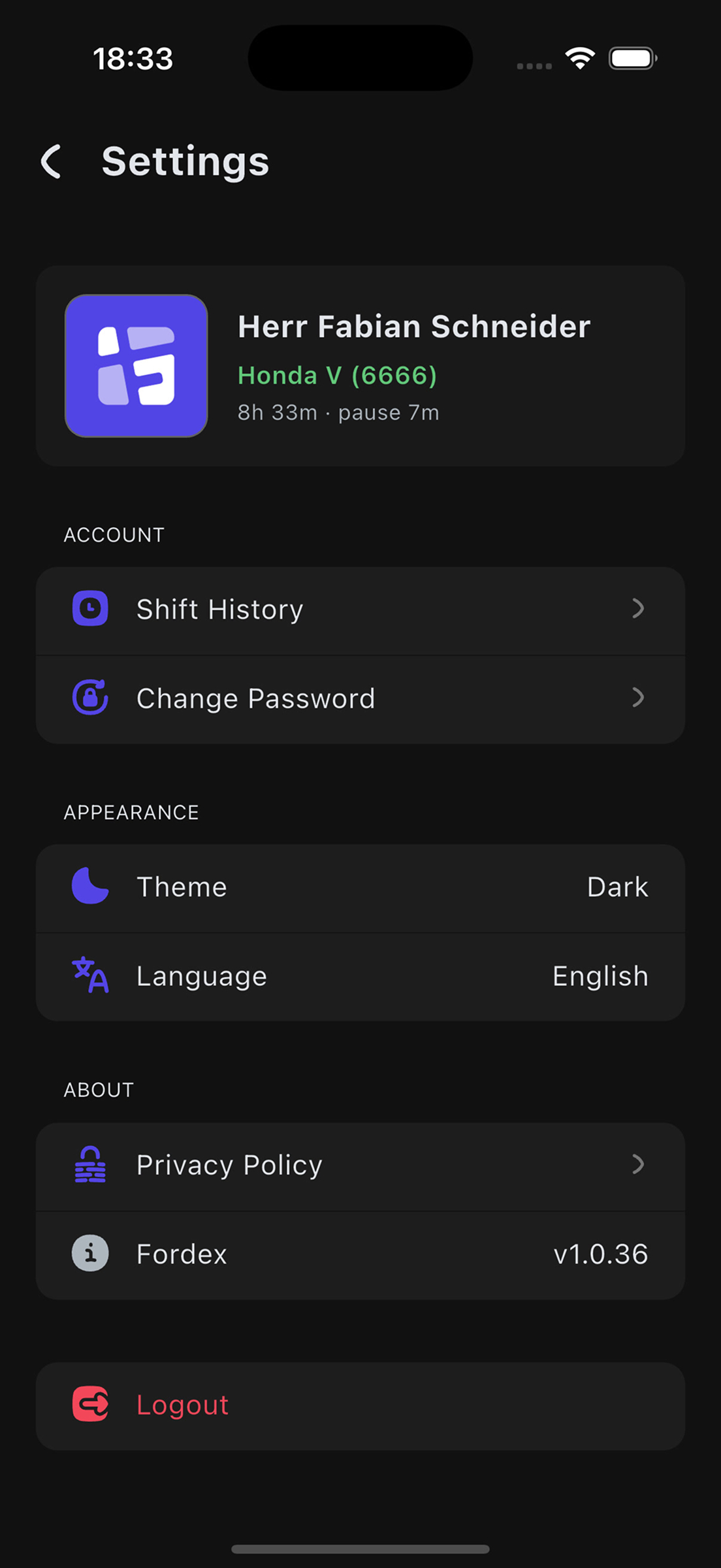
Settings screen with profile
2
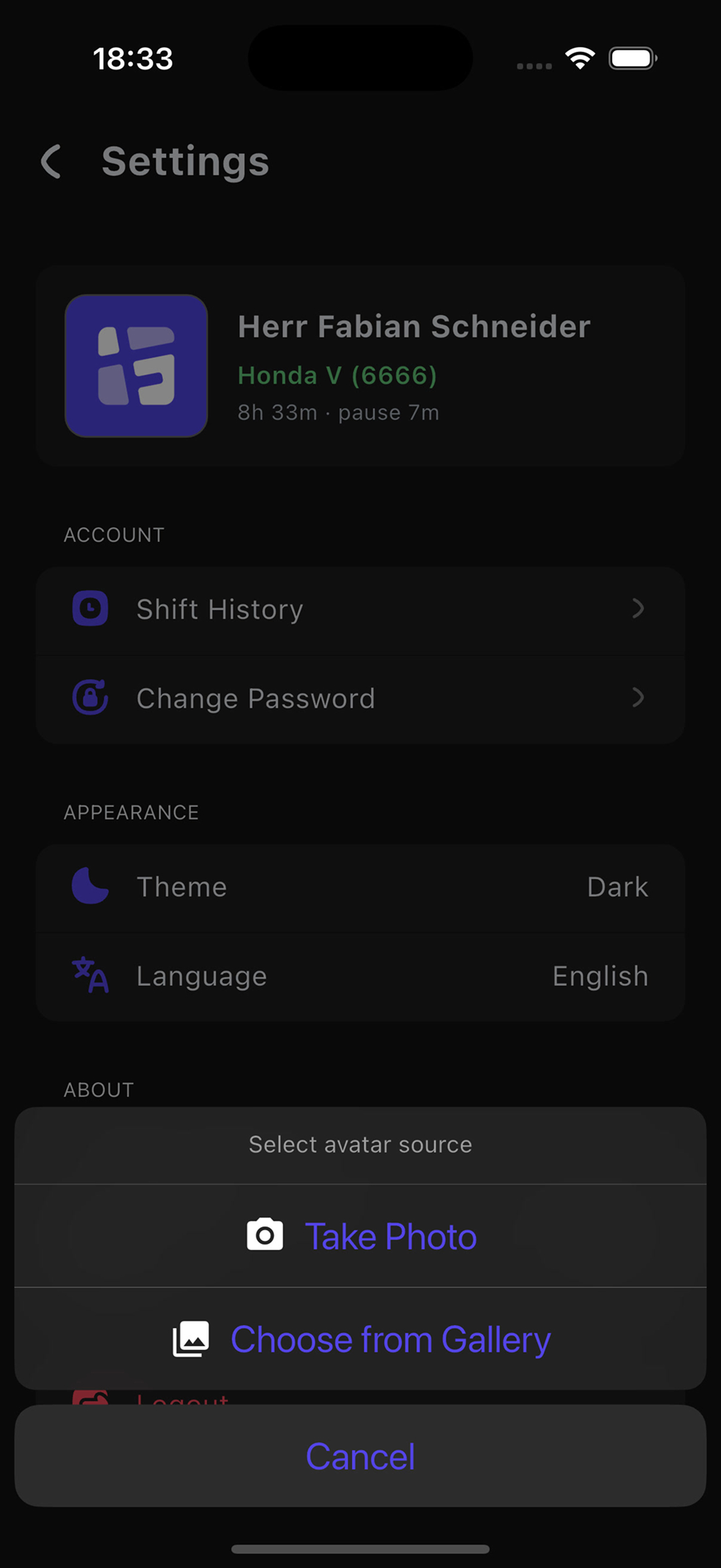
Choose avatar source
3
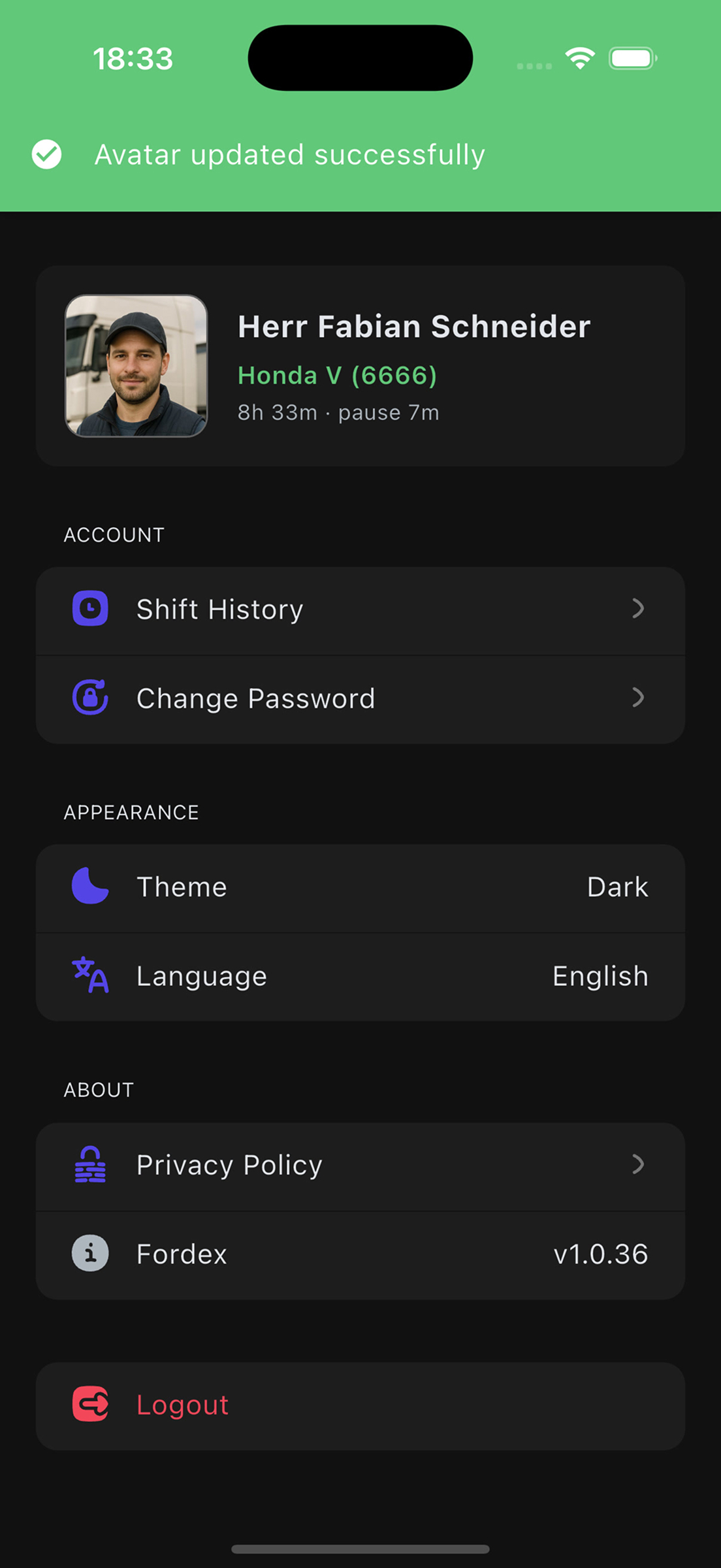
Updated avatar
info
Maximum image size: 2 MB
Shift History
View your shift statistics:
- Open Settings
- In the ACCOUNT section, select "Shift History"
- You will see a list of all your shifts with information:
- Start/end date and time
- Vehicle name
- Shift status (Active, Paused, Completed, Closed)
- Working time and pauses
- Tap on any shift to view details:
- Total Time — total shift time
- Working — working time
- Pause — pause time
- Events — all shift events (start, pause, resume, complete)
1
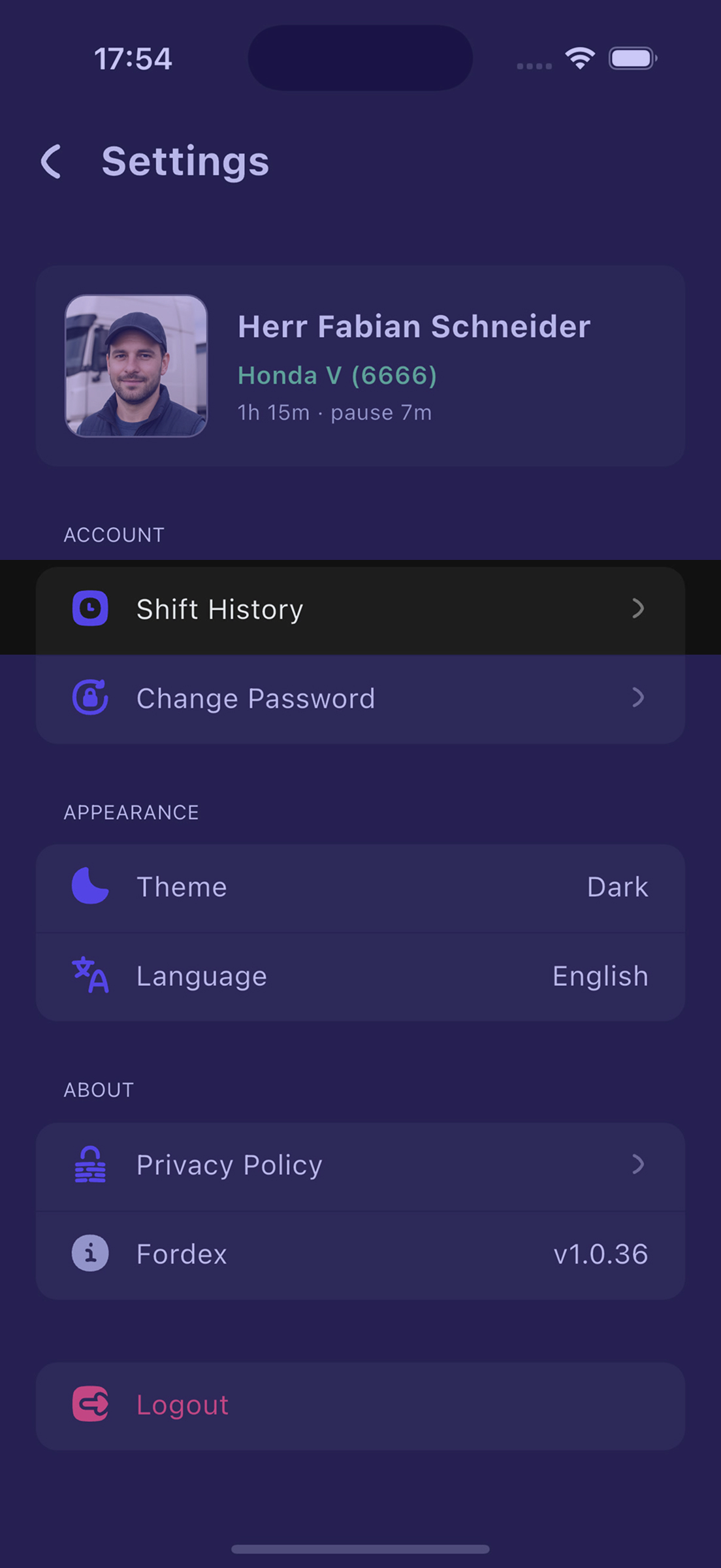
Settings → Shift History
2
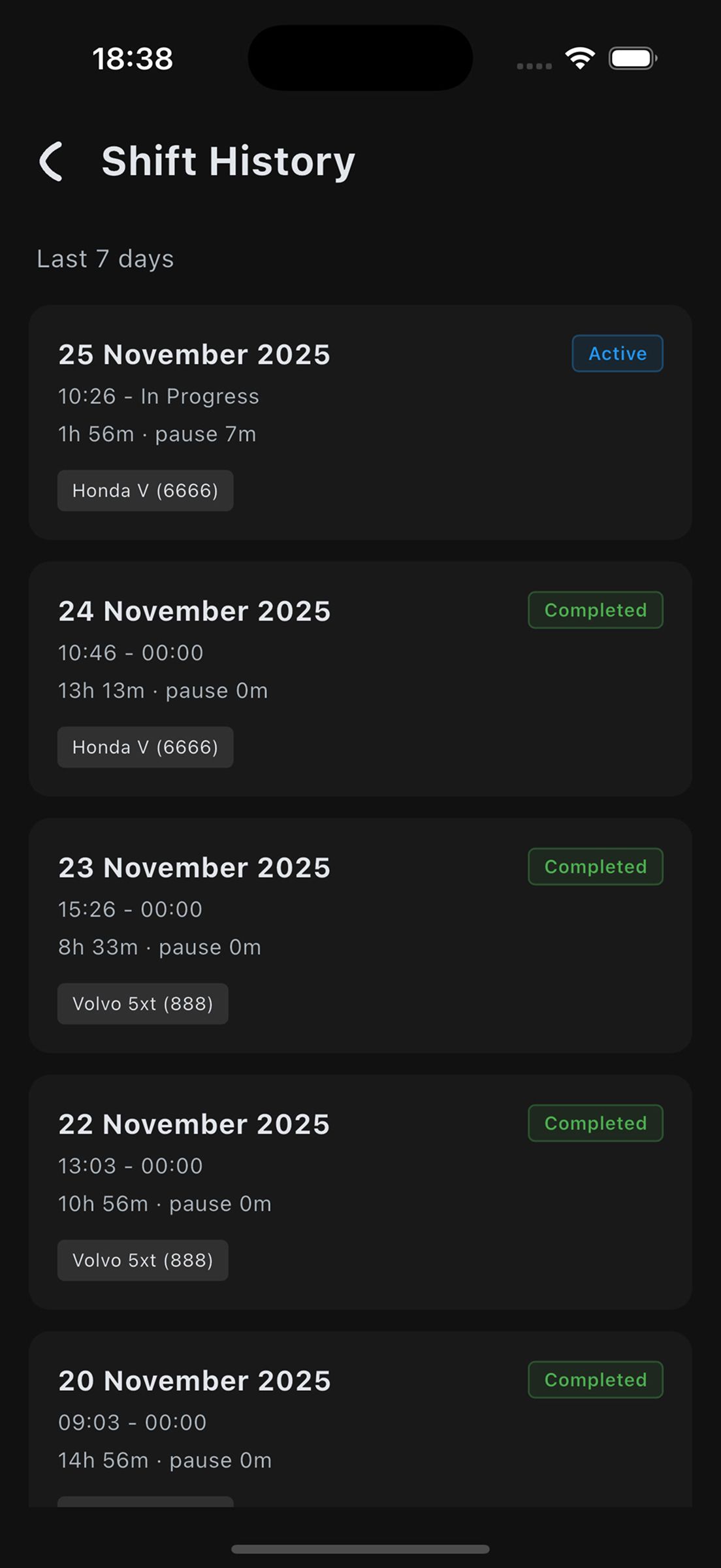
List of shifts
3
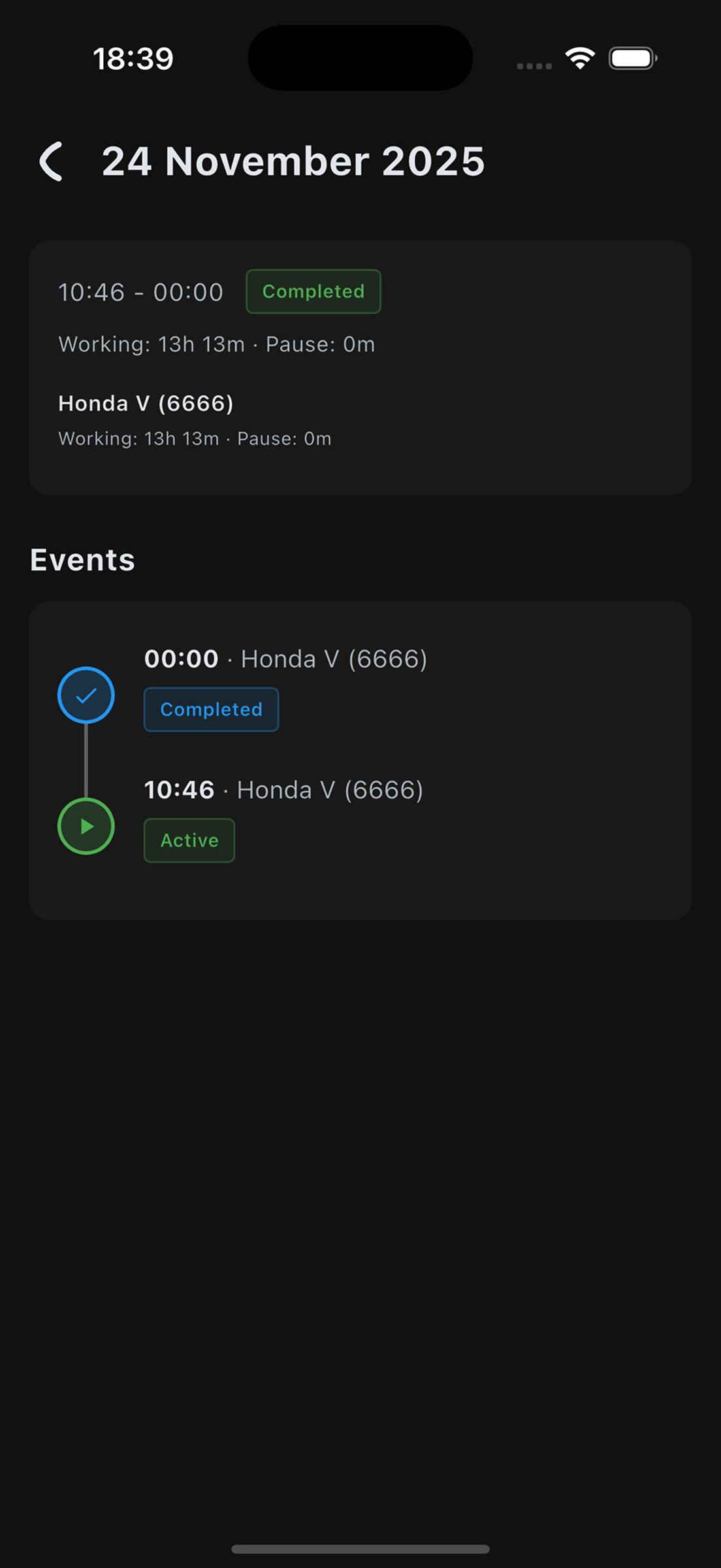
Shift details
Change Password
To change your password:
- Open Settings
- In the ACCOUNT section, select
 "Change Password"
 - Enter:
- Password — current password
- New Password — new password (minimum 5 characters)
- Tap "Save Password"
- The notification "Your password has been successfully changed." will appear
1
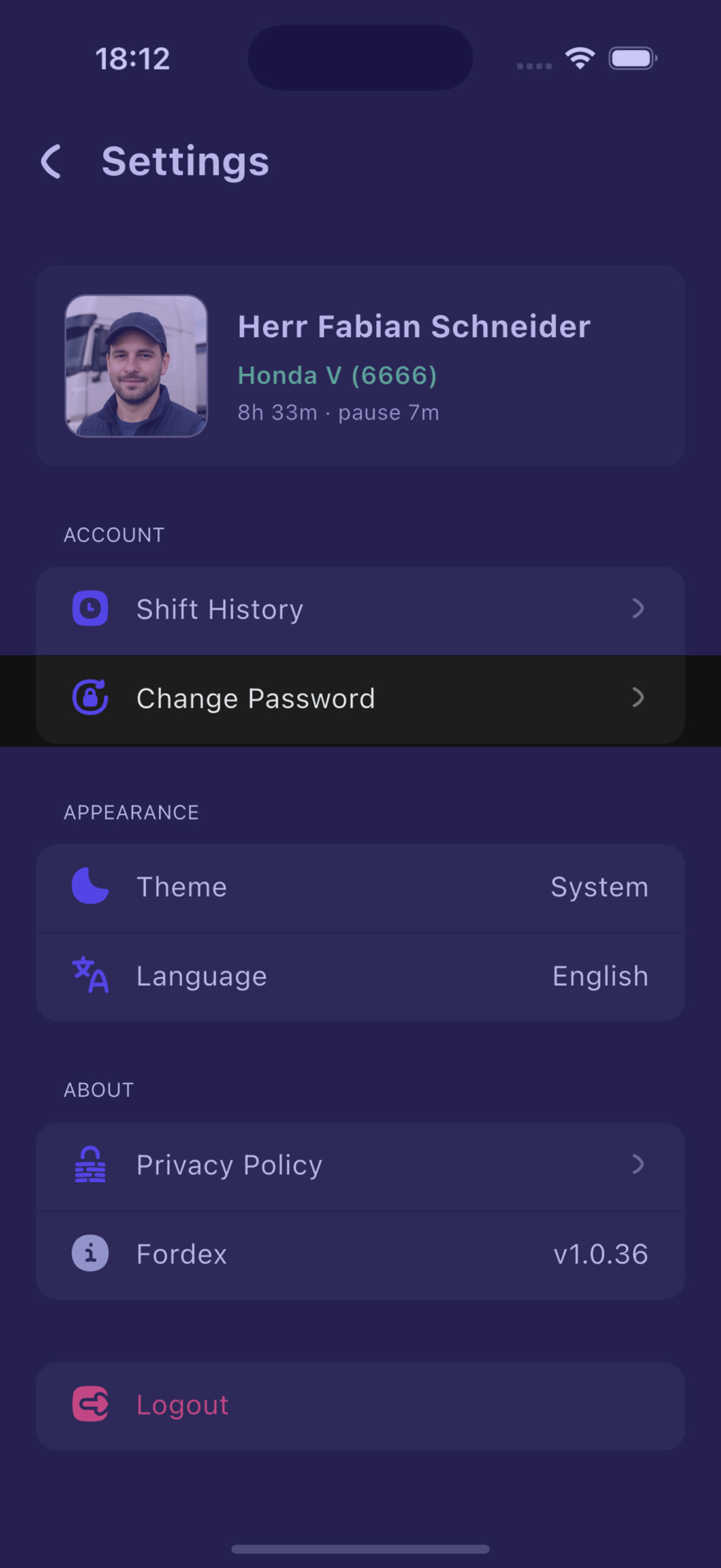
Settings → Change Password
2
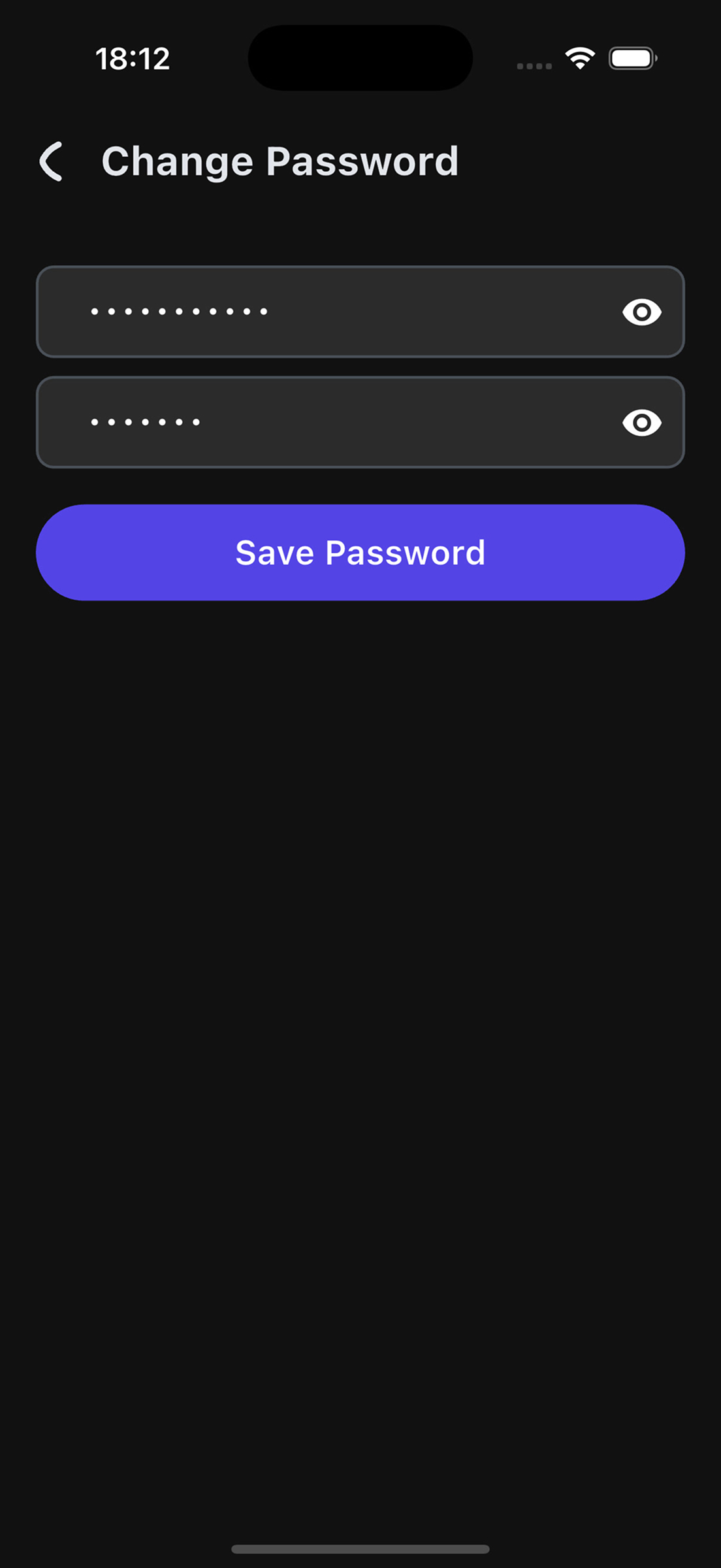
Change Password form
3
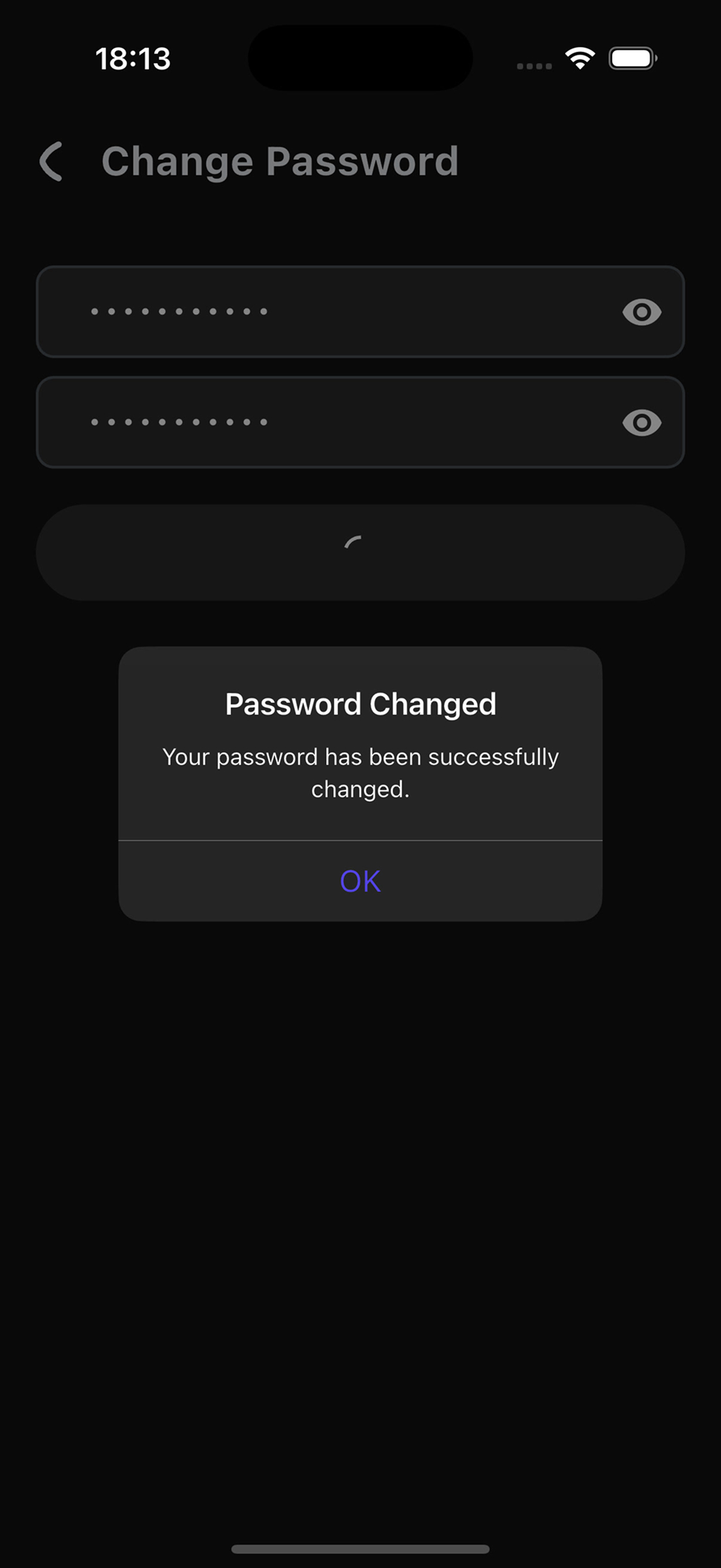
Password changed successfully
Important
New password must be different from the current one.
App Theme
You can customize the app appearance:
- Open Settings
- In the APPEARANCE section, find the "Theme" row
- Tap on the row
- Choose a theme:
 Light — light theme
 Dark — dark theme
- System — follow phone system settings
- The theme will apply immediately
1
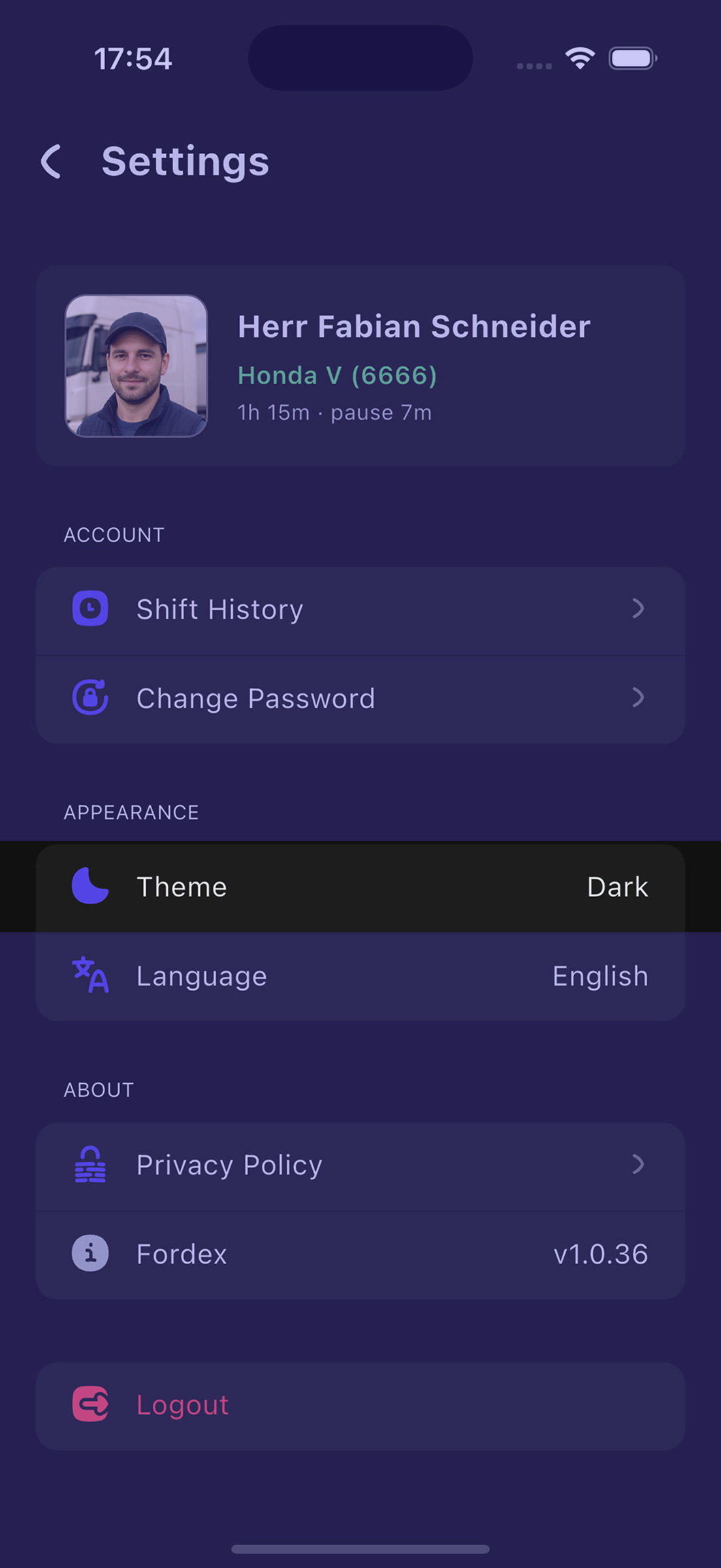
Settings → Theme
2
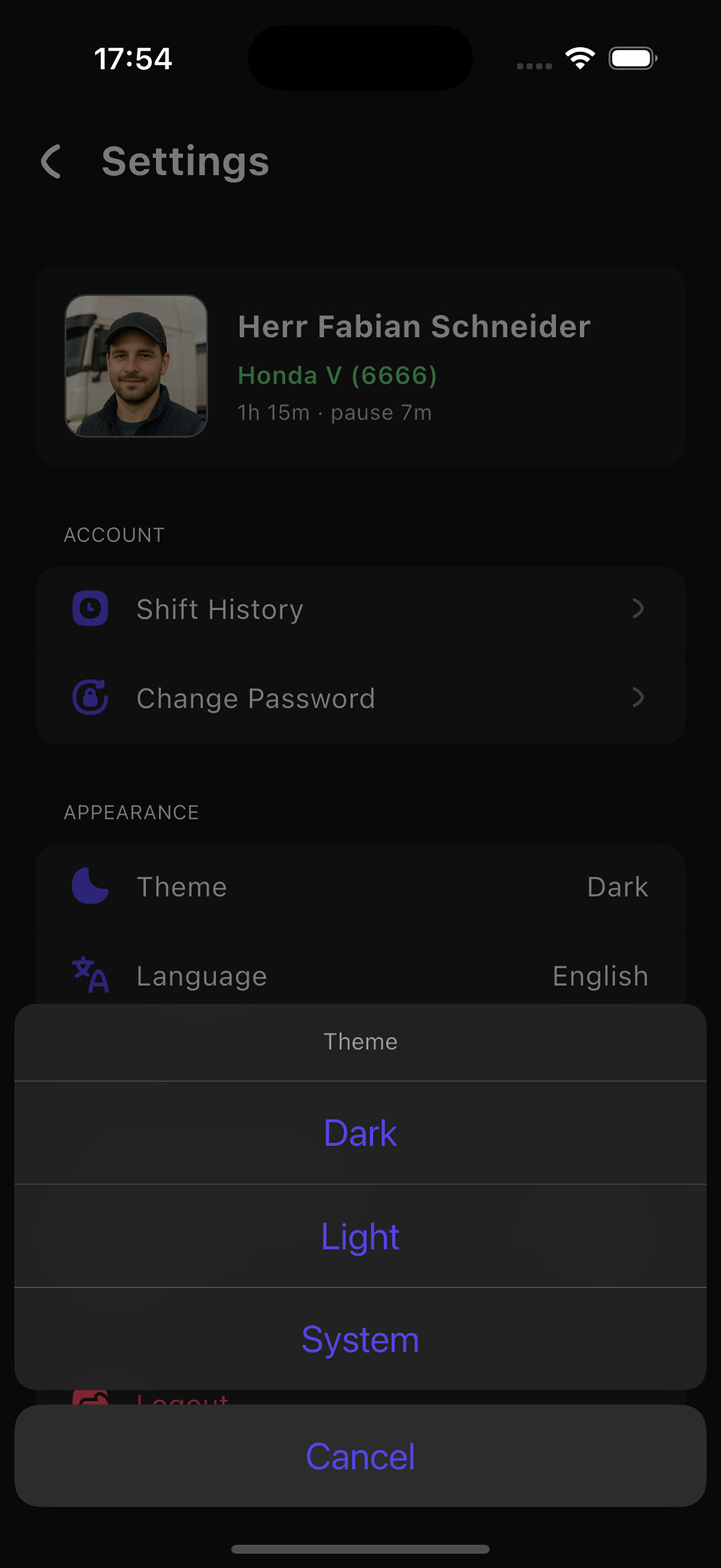
Theme selection dialog
3
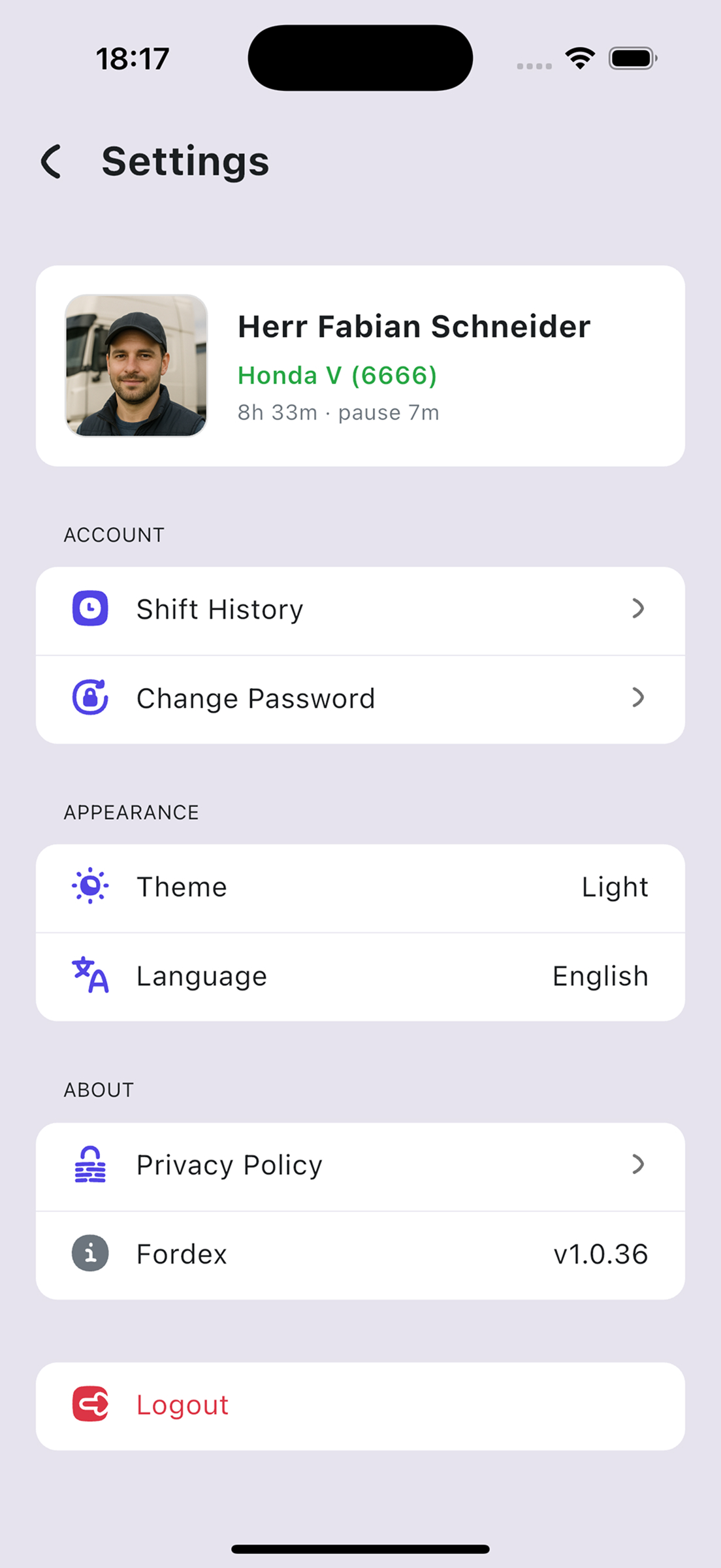
App in light theme
App Language
Available languages:
- Deutsch (German)
- English
To change the language:
- Open Settings
- In the APPEARANCE section, find the
 "Language" row
 - Tap on the row
- Choose a language:
- English
- Deutsch
- System Default — follow phone language
- The language will apply immediately
1
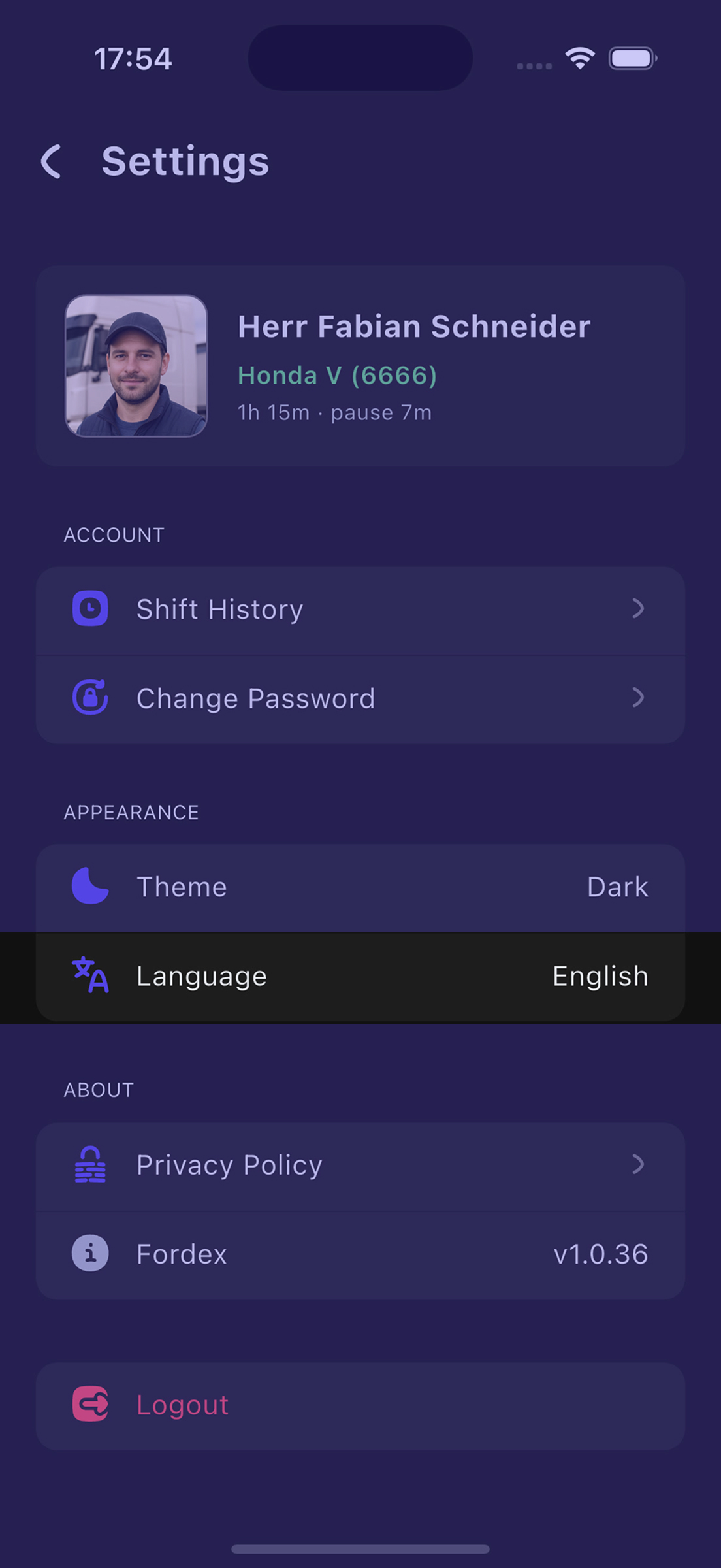
Settings → Language
2
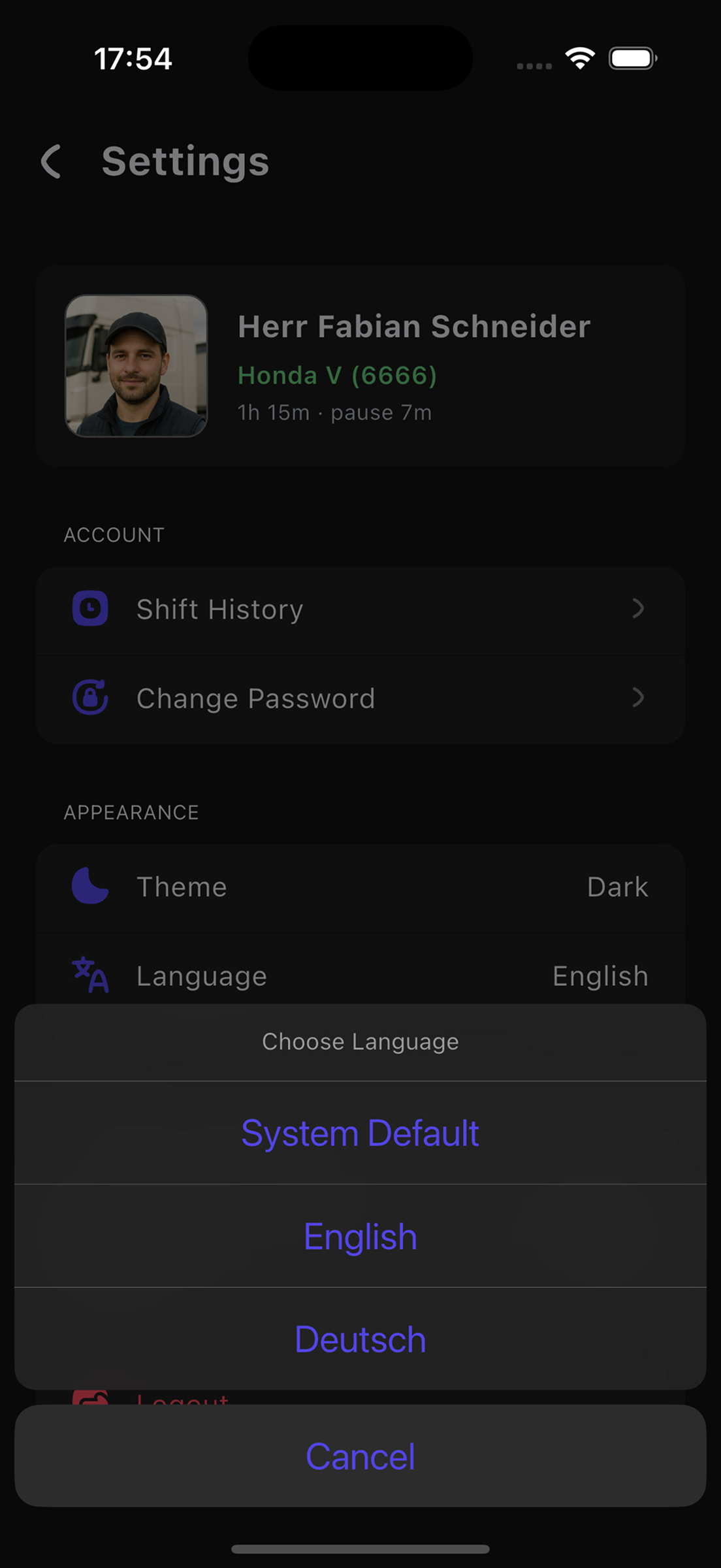
Language selection dialog
Check the FAQ section for answers to frequently asked questions.