Shift Management
Learn how to effectively manage your work shifts.
Shift States
In the app, a shift can be in the following states:
| State | Description | Action Button |
|---|---|---|
| No active shift | Shift not started | Start shift |
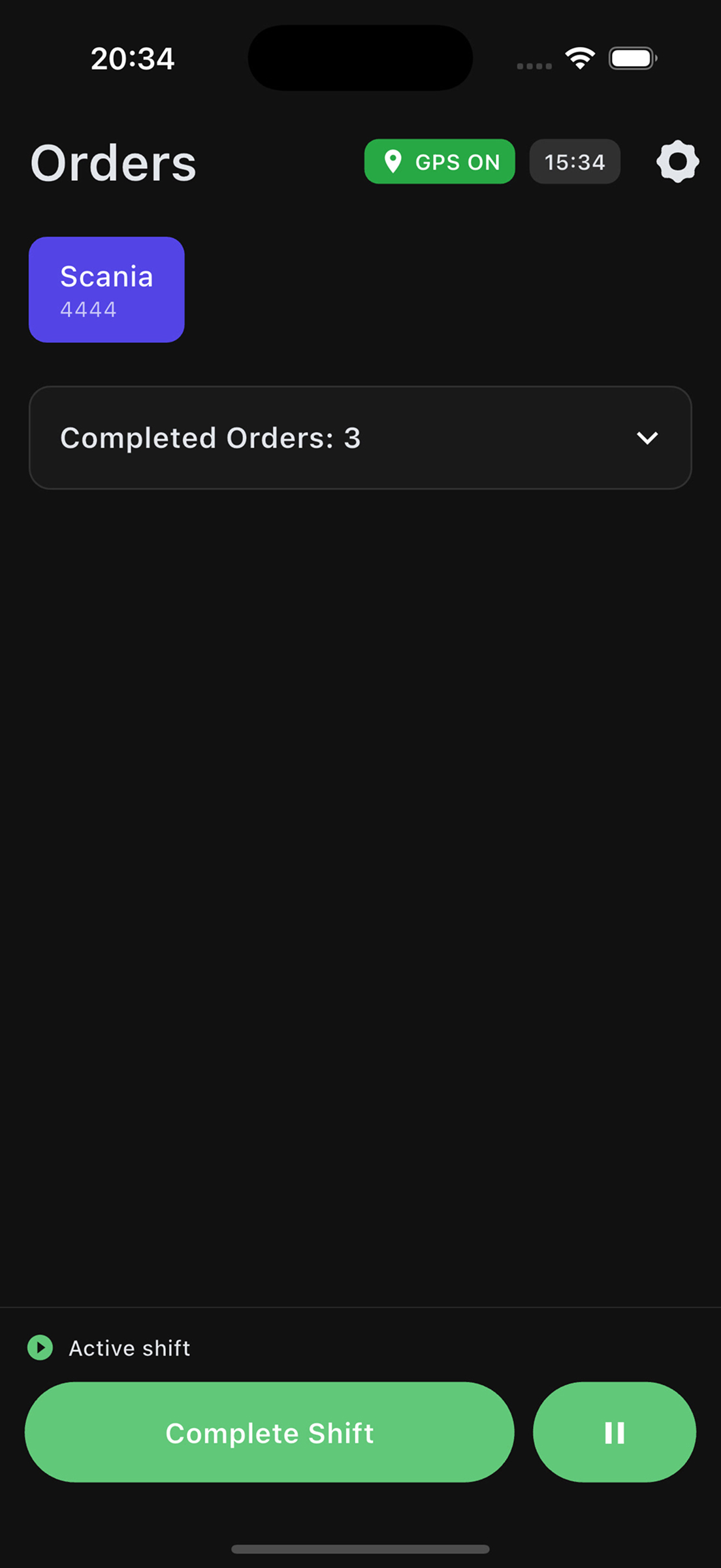
| Active shift | Shift is active, can work with orders | Pause / Complete Shift |
| Shift paused | Shift is paused (break) | Resume |
| Shift completed | Shift completed but not closed | Close Shift |
| Shift closed | Shift fully closed | — |
Shift Actions
Pause
Use for breaks (lunch, rest):
- Tap the "Pause" button
- The shift will be paused but not closed
Resume
Return to work after pause:
- Tap the "Resume" button
- The shift will become active again
Complete Shift
Use at the end of the workday when all orders are completed:
- Press and hold the "Complete Shift" button for 2 seconds
- The shift will transition to "Completed" status
- Now you need to close the shift with a reason
Close Shift
After completing the shift, you need to close it:
-
Press and hold the "Close Shift" button for 2 seconds
-
Select the closing reason:
- End of work day — end of workday
- Vehicle breakdown — vehicle breakdown
- Health issue — health problems
- Personal circumstances — personal circumstances
- Weather conditions — weather conditions
- Document issues — document problems
- Dispatcher request — dispatcher request
- Switch vehicle — vehicle change
- Other — other reason (text input required)
-
Tap "Confirm"
-
The shift will be closed
1
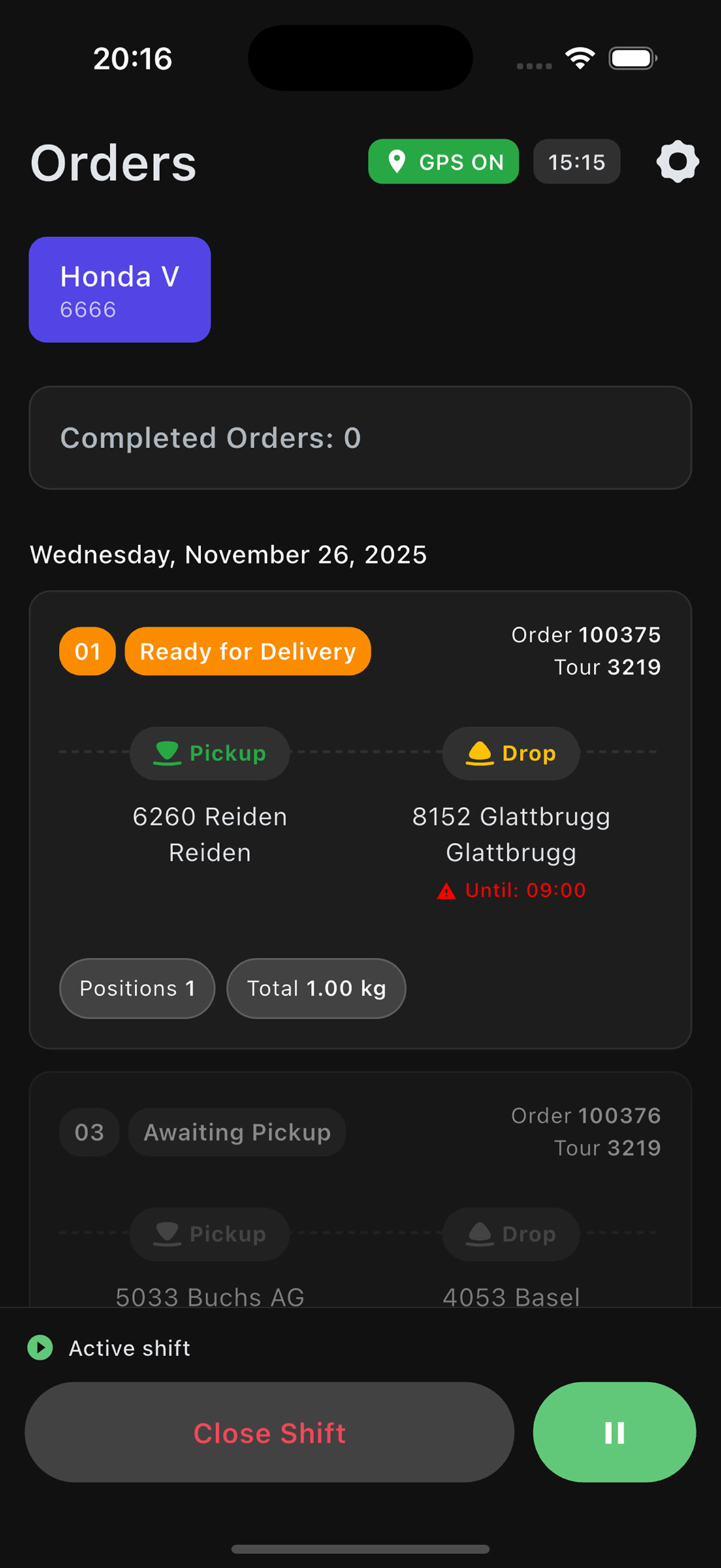
Close Shift button (when orders remain)
2
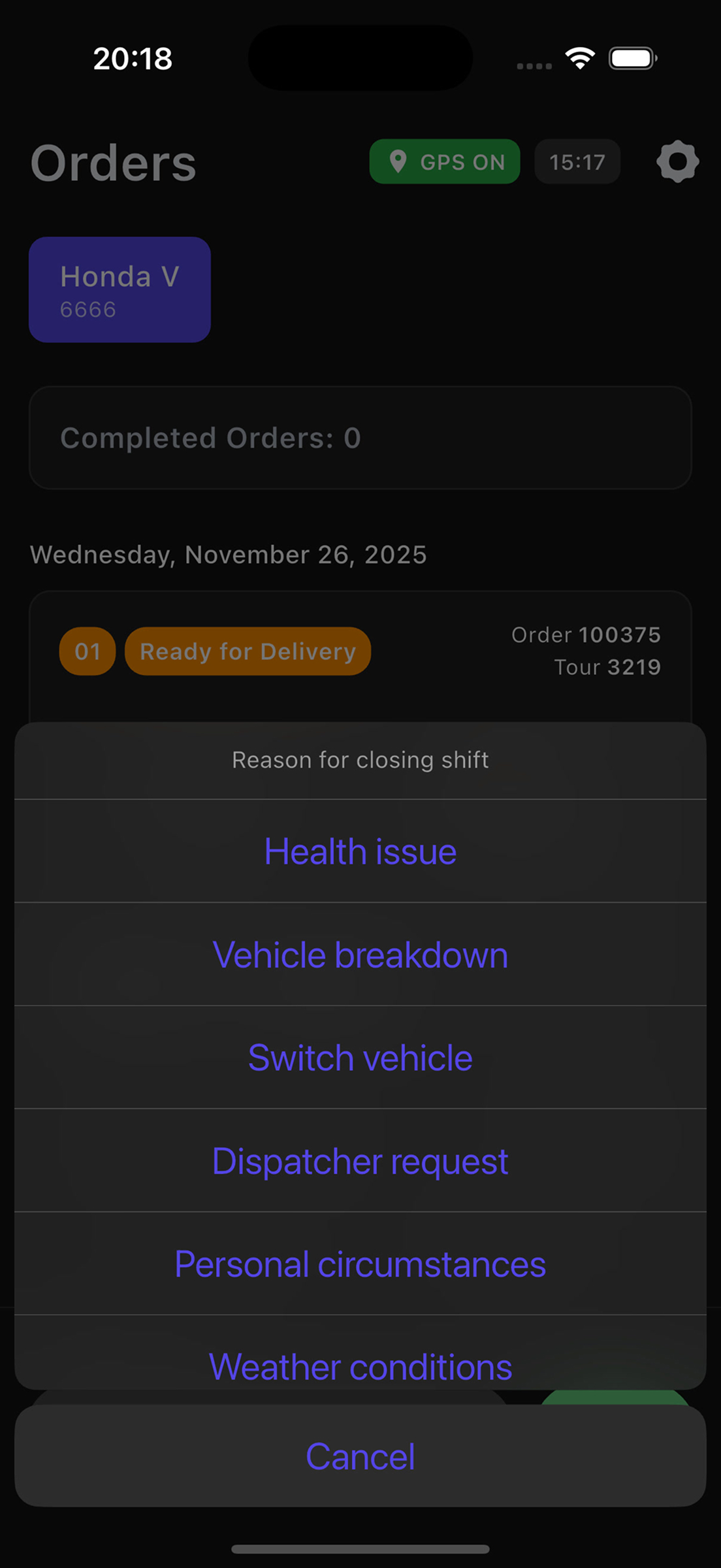
Select closing reason
3
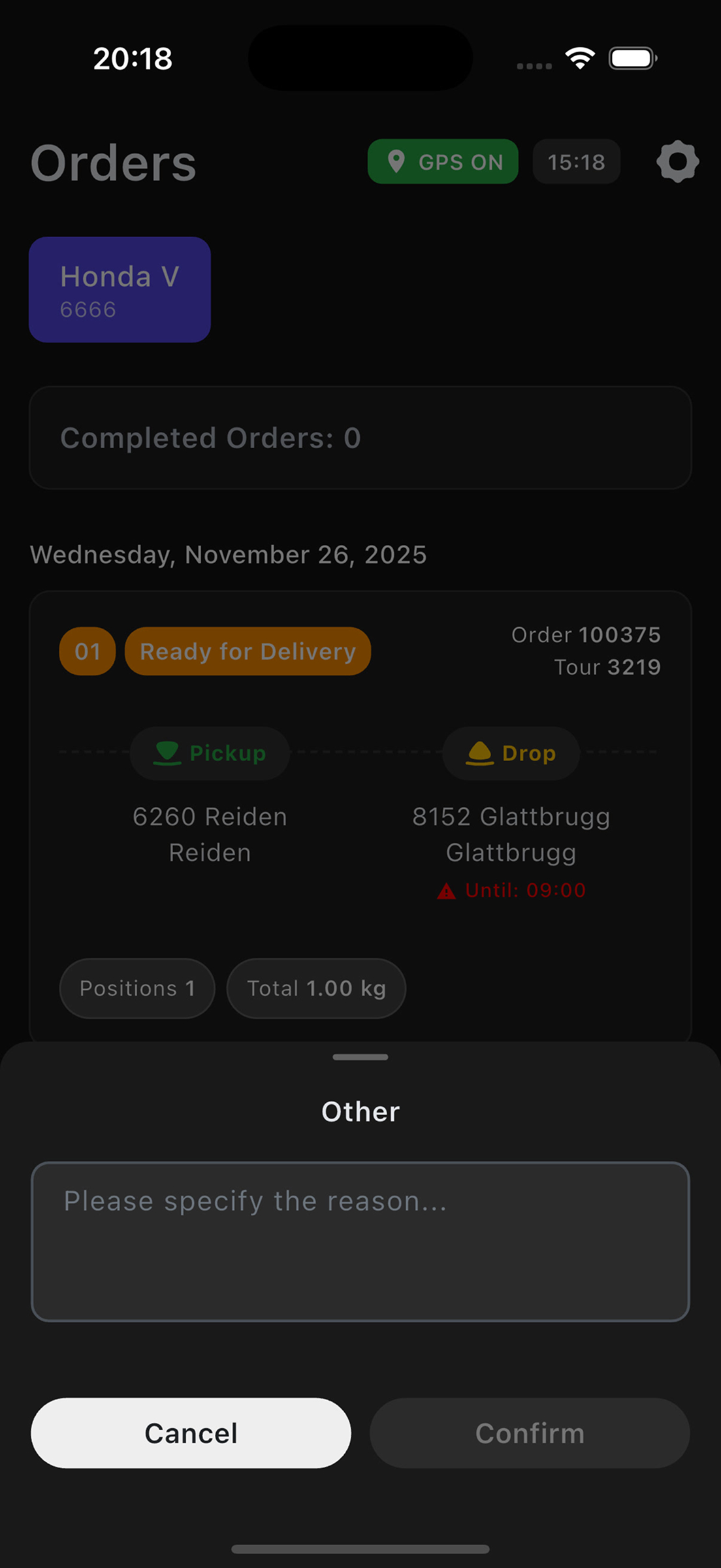
Enter custom reason for 'Other'
Explore additional app features.