Frequently Asked Questions (FAQ)
Frequently asked questions and answers about using the Fordex app.
What should I do if orders don't load?
- Check your internet connection (look at the indicator at the top of the screen)
- Pull down the Orders screen to refresh (Pull to Refresh)
- If the problem persists, restart the app
What should I do if I can't start a shift?
Check:
- Do you have GPS access (go to phone settings and check permissions)
- Are location services enabled on the phone
- Is there an active shift on another vehicle
If there's an active shift on another vehicle, first complete it, then start a new one.
When trying to work with orders without an active shift, a dialog will appear:
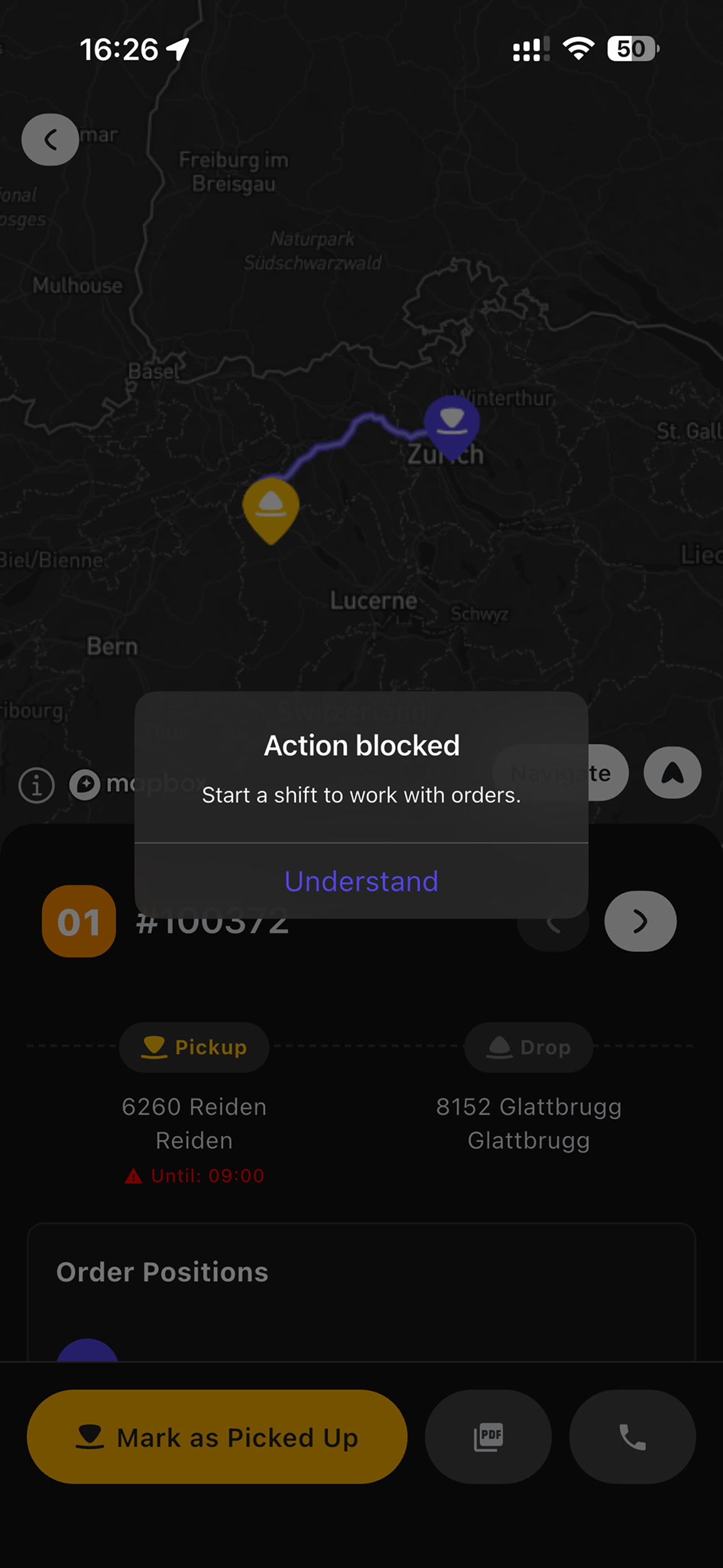
Can I work with orders while on pause?
No. To work with orders, the shift must be in Active state.
If the shift is paused and you try to complete an order, a message will appear: "Shift is paused. Resume the shift to work with orders."
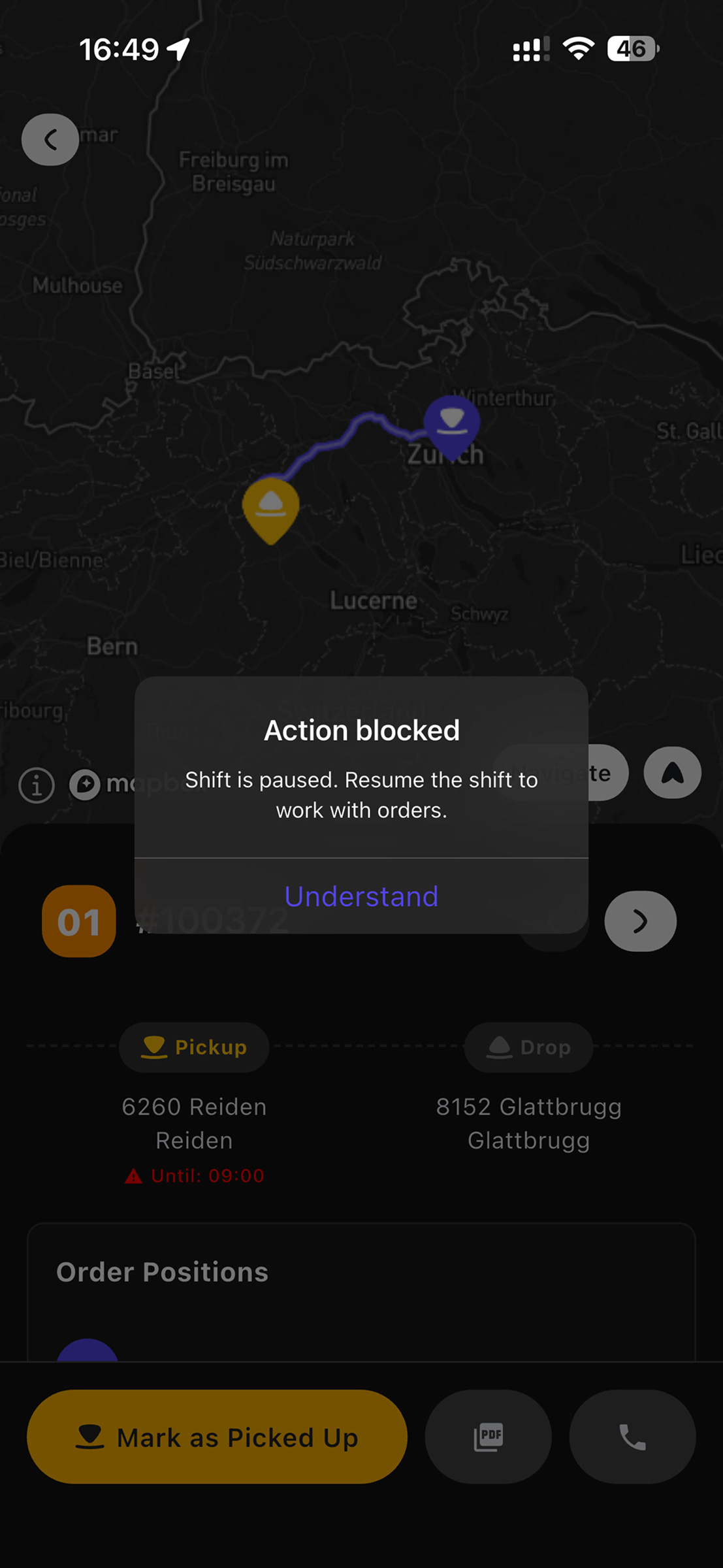
Tap "Resume" to continue working.
Can I cancel delivery confirmation?
No. After tapping "Confirm Delivery", the data is sent to the server and the action cannot be undone.
Be careful when filling out forms!
What should I do if I forgot my password?
Contact your manager to reset your password.
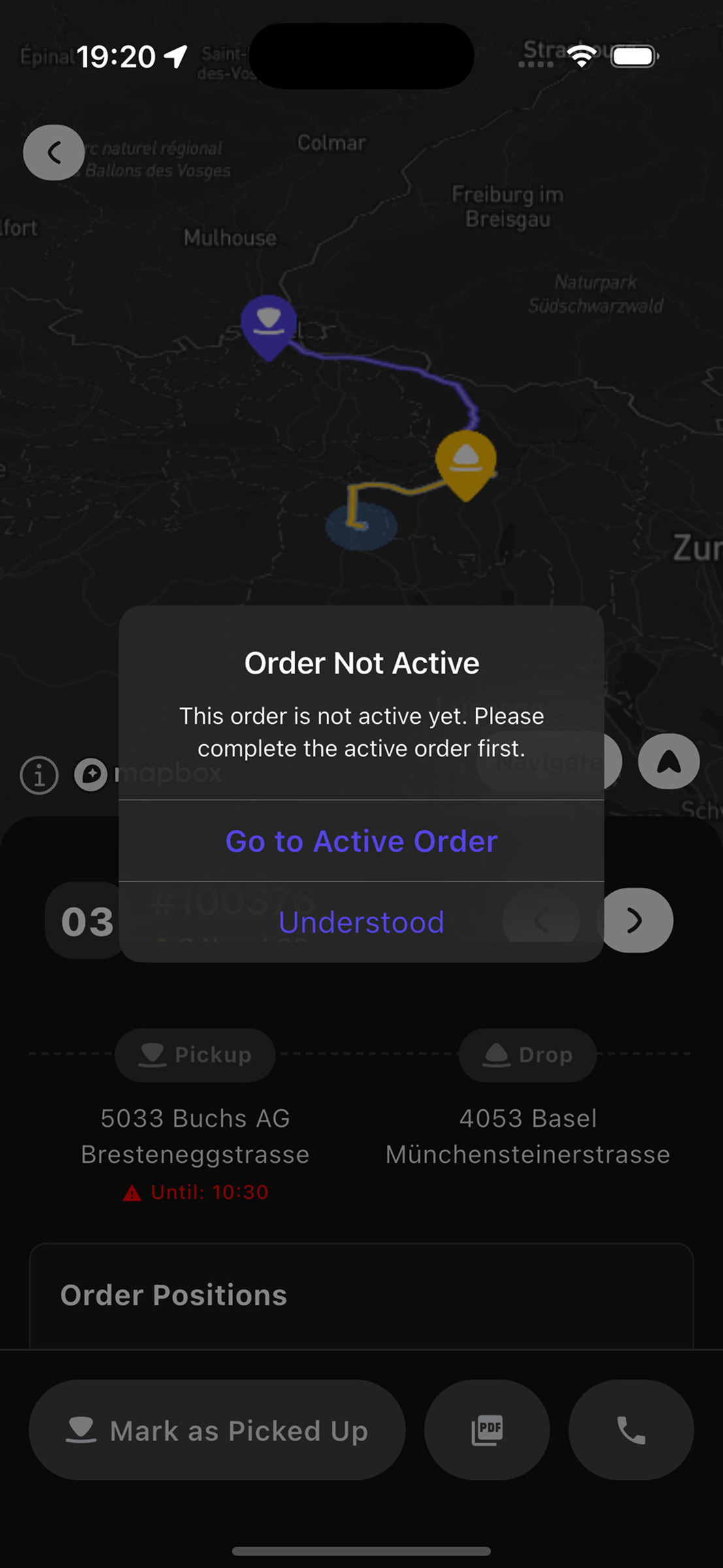
Why can't I complete an order that's not active?
The system works sequentially — you can only complete the active order (highlighted in orange).
After completing the active order, the next order in the queue automatically becomes active.
The app is requesting camera/gallery permission
This is normal. Permissions are requested when you try to:
- Add photos to the delivery form
- Upload an avatar
Tap "Allow" or "Grant Permission" to continue.
If you accidentally denied, go to phone settings and manually allow camera/gallery access for the Fordex app.
Having problems?
If you're having problems with the app:
- Try restarting the app
- Make sure you have the latest version installed (check in App Store / Google Play)
- Contact your manager
Useful Tips
Internet connection: Internet is required to sync orders. Make sure mobile data is enabled.
Updating order list: Orders update automatically, but you can manually refresh them by pulling the screen down.
For more information, see the Getting Started guide.