Getting Started
Before starting to work with orders, you need to complete the initial setup.
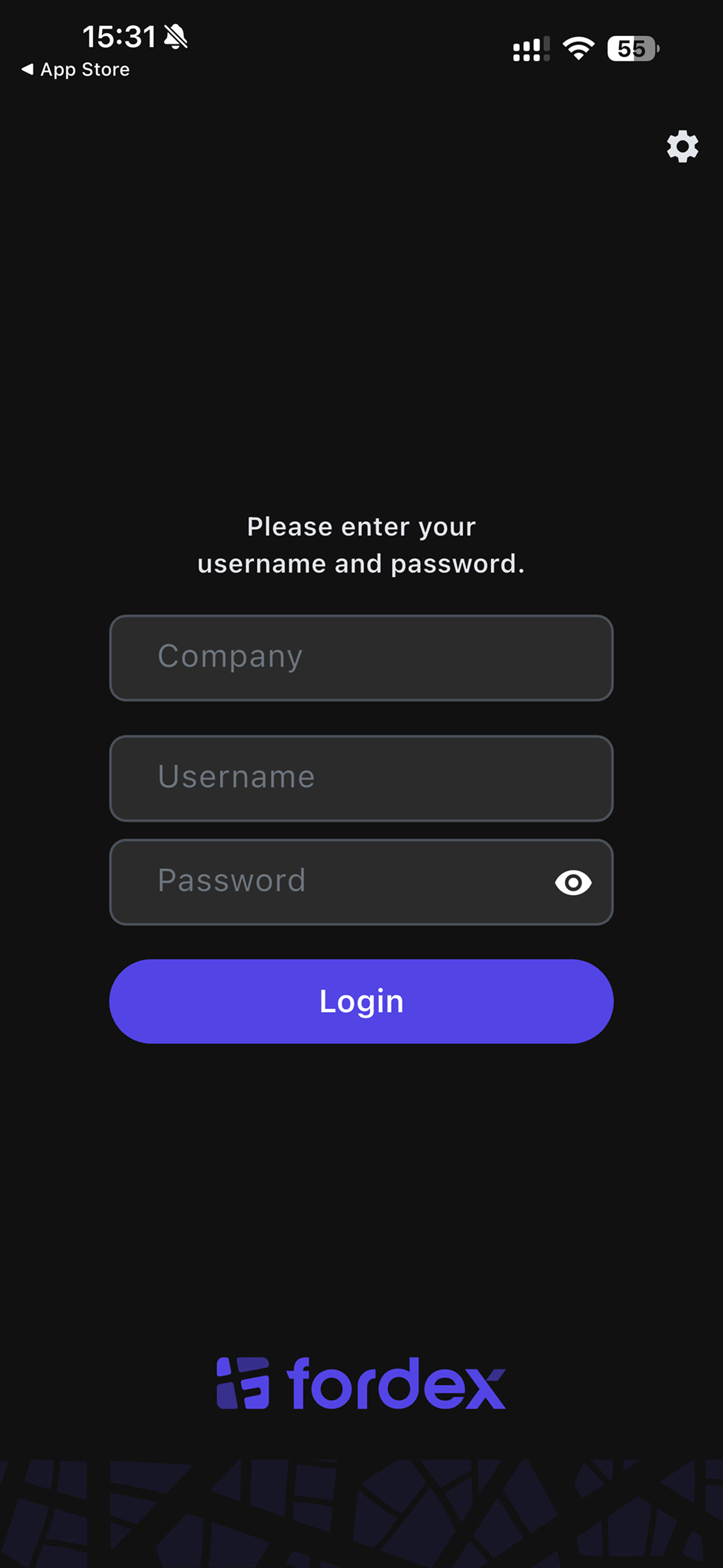
Logging into the App
- Open the Fordex app
- Enter your authorization credentials (request from your manager):
- Domain (Company) — company name
- Username — your login
- Password — your password
- Tap the "Login" button
GPS Permission (Required)
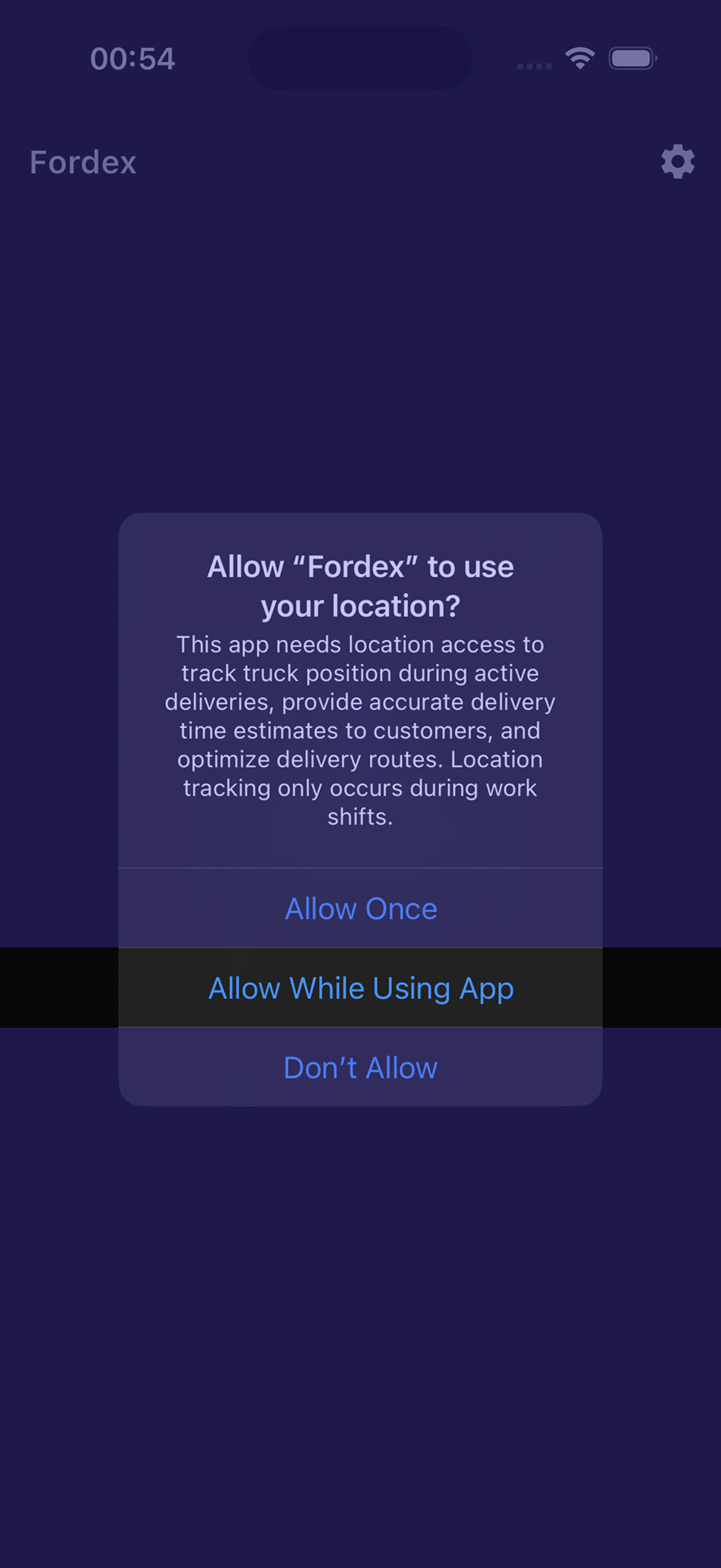
After successful authorization, the app will automatically request access to your location.
If the GPS permission popup appears:
In the system dialog, select one of the options:
- "Allow While Using App" (iOS) / "While using the app" (Android) — recommended
- "Allow Once" (iOS) / "Only this time" (Android)
If you accidentally denied GPS access:
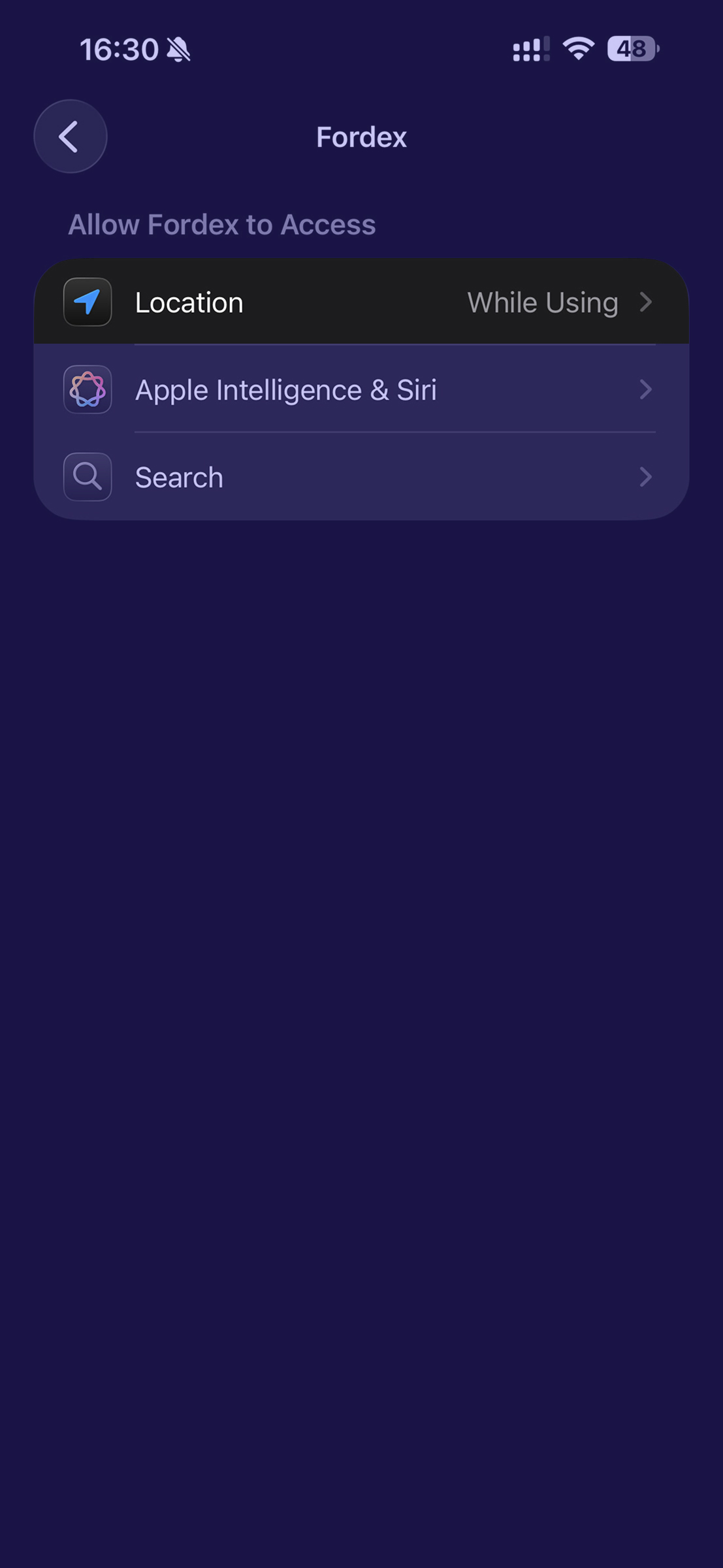
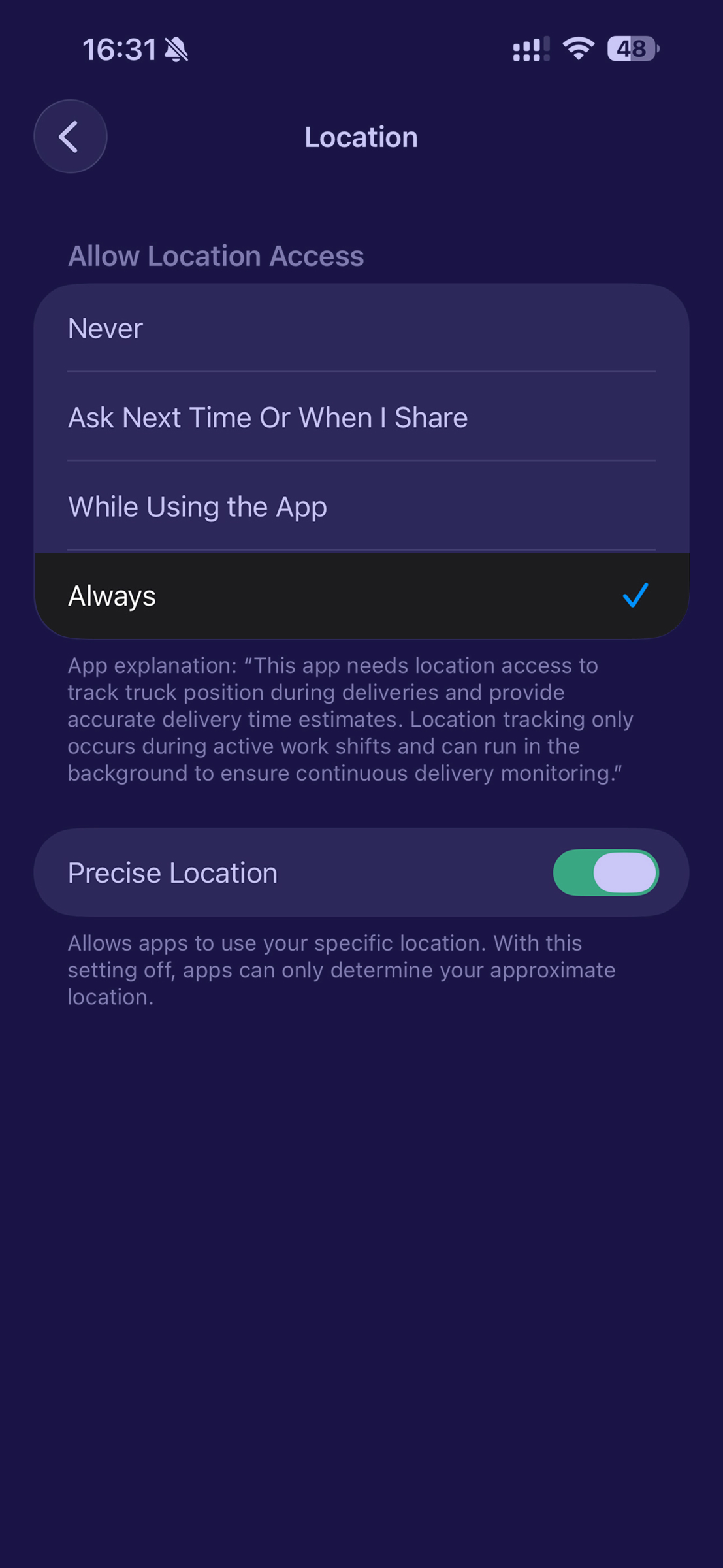
iOS:
- Close the app
- Open Settings on your phone
- Scroll down and find Fordex
- Tap on Location
- Select "While Using the App" or "Always"
- Return to the app
Android:
- Close the app
- Open Settings on your phone
- Go to Apps → Fordex
- Tap Permissions
- Find Location and select "Allow all the time" or "Allow only while using the app"
- Return to the app
GPS is required to work with orders. Without location access, you won't be able to start a shift and work with orders.
Main Screen (Orders)
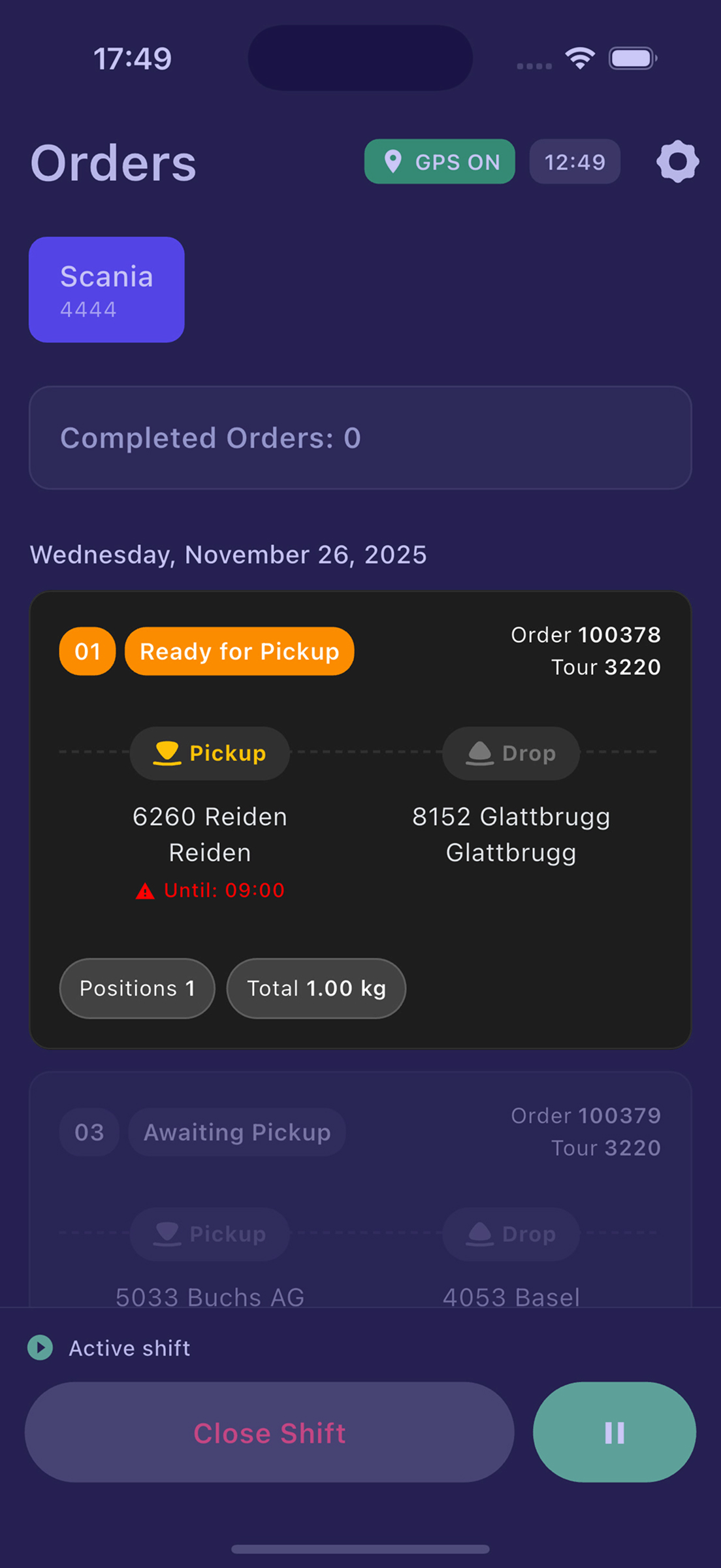
After authorization, you will be taken to the main screen with your orders.
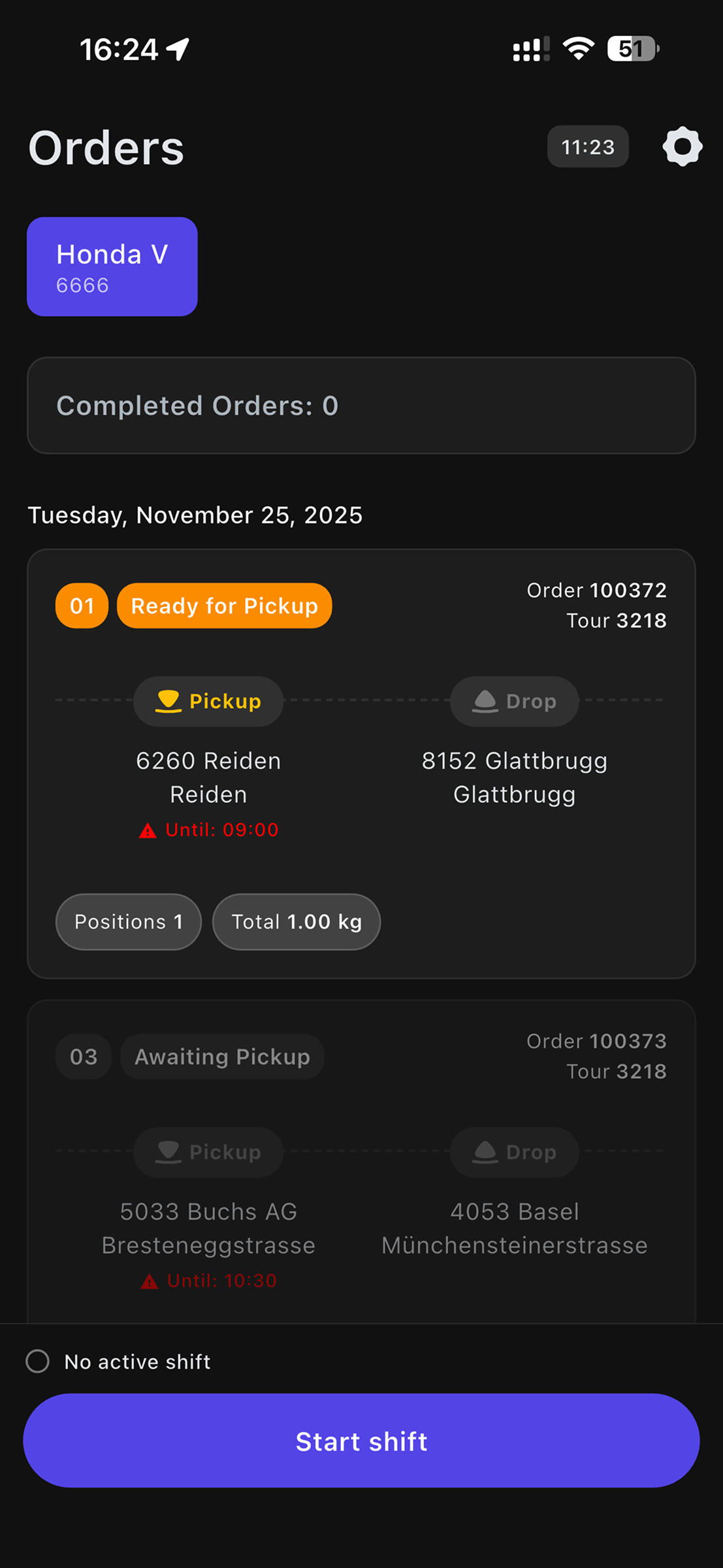
Order Structure
All orders are divided into 3 groups:
Completed Orders
- This is a spoiler (collapsible section), collapsed by default
- Shows all orders you have already completed
- Tap on the header to expand and view history
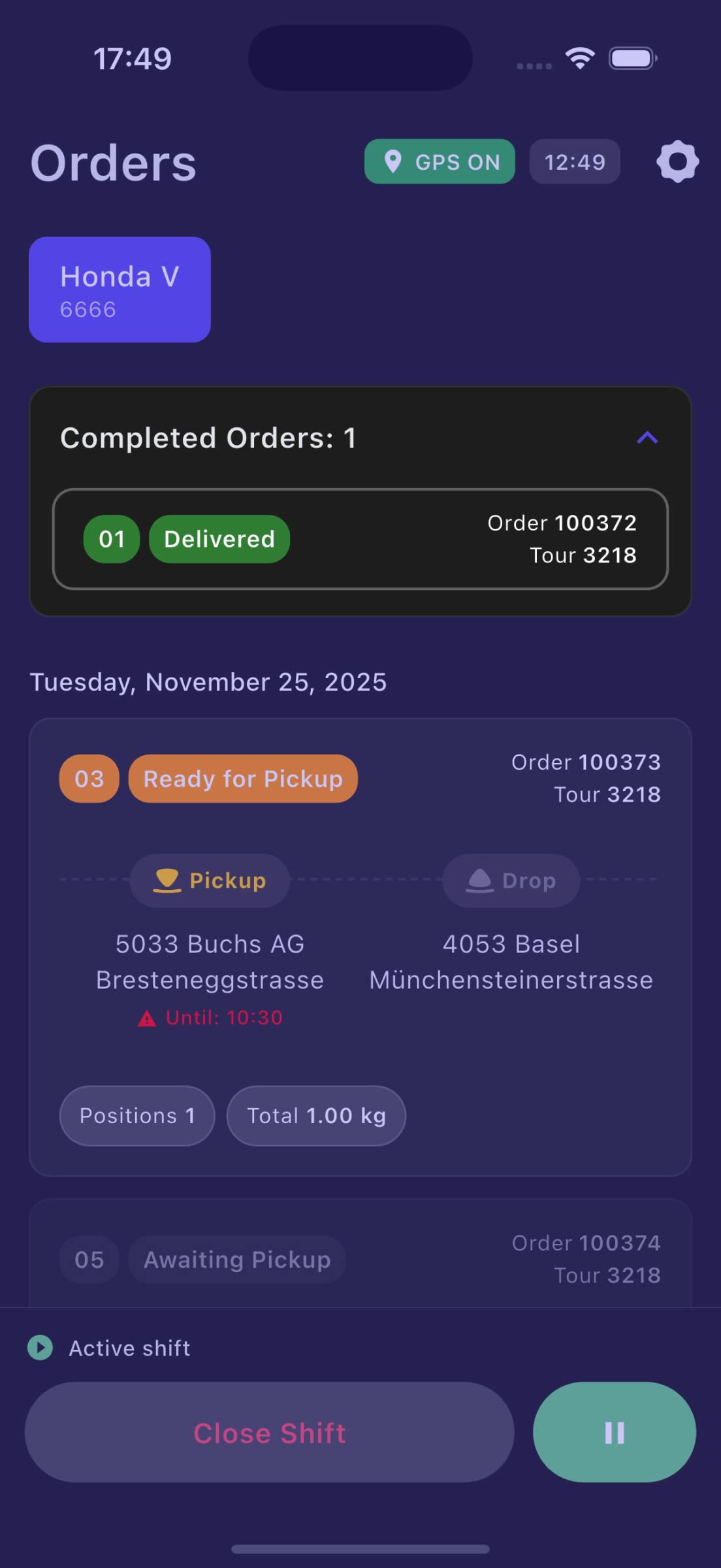
Active Order (highlighted in orange)
- This is the order you need to complete right now
- Always located between completed and pending orders
- Highlighted in orange for better visibility
- Only the active order can be processed
Pending Orders
- Orders that will become active after completing the current active order
- Displayed in gray
- Automatically become active in sequence
Order Card Information
Each order card contains:
- Order ID — order number
 Pickup /
  Drop — operation type (loading or unloading)
- Address — execution address
- Until — deadline
- UN — hazardous cargo code (if applicable)
 — phone icon for quick customer call
 — navigation icon to start route
Next: Learn how to start a shift and perform vehicle check.
Start a Work Shift
Before starting to work with orders, you need to complete two steps:
1. Start a Work Shift
- At the bottom of the Orders screen, find the shift control panel
- Find the "Start shift" button
- Press and hold the button for 2 seconds
- Wait for the progress bar to fill
- The message "Shift started successfully" will appear
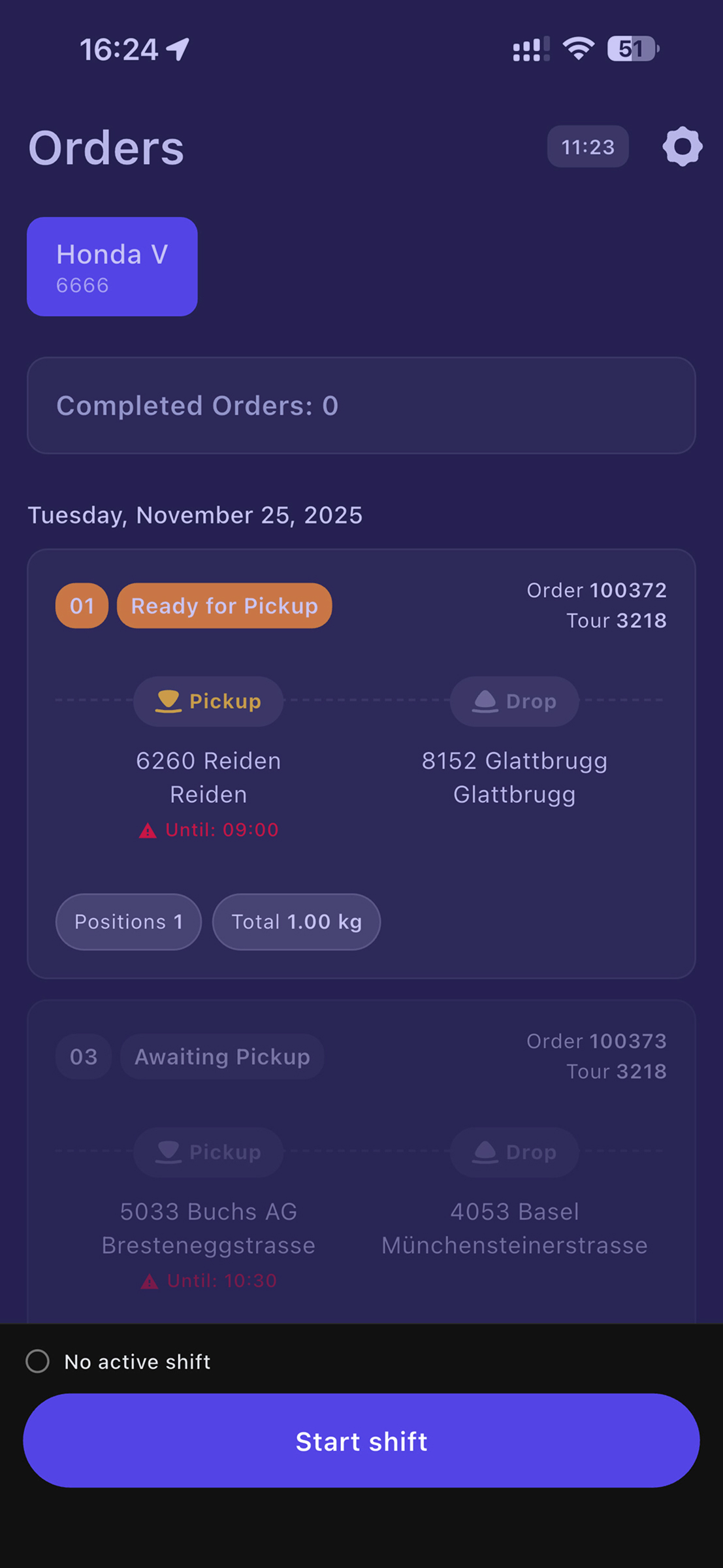
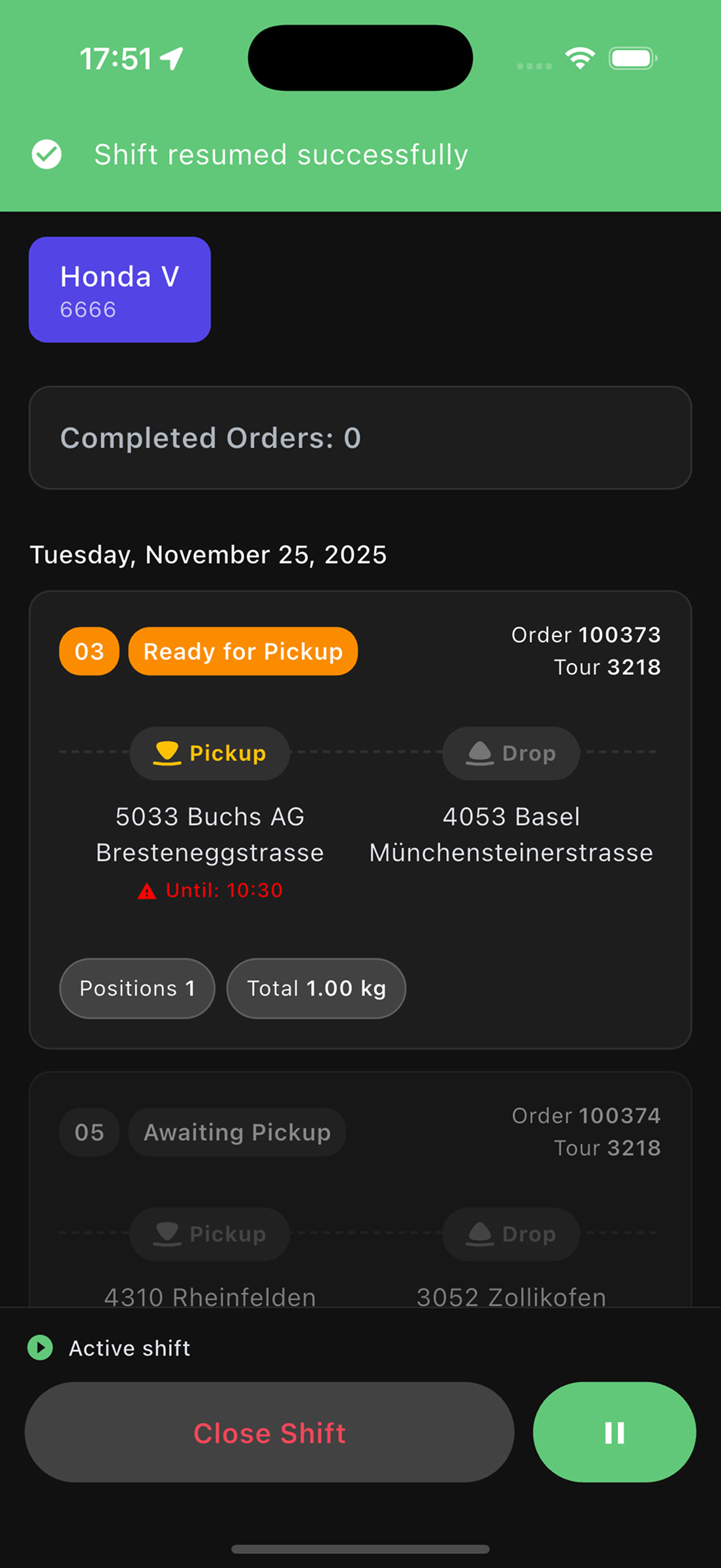
This is protection against accidental taps. Critical actions (starting, closing shift, marking pickup) require holding the button for 2 seconds.
2. Complete Vehicle Check
When does Vehicle Check appear?
Vehicle Check automatically appears when you first tap on an order during the day, if you haven't performed the check yet.
Sequence:
- Start the shift (Start shift)
- Tap on any order card
- The "Vehicle Check" modal window will automatically open
Vehicle check is required once per day. After completing the check, you can freely open orders without repeated checks.
Two-Step Check
The Vehicle Check modal consists of two steps:
Step 1: Checklist
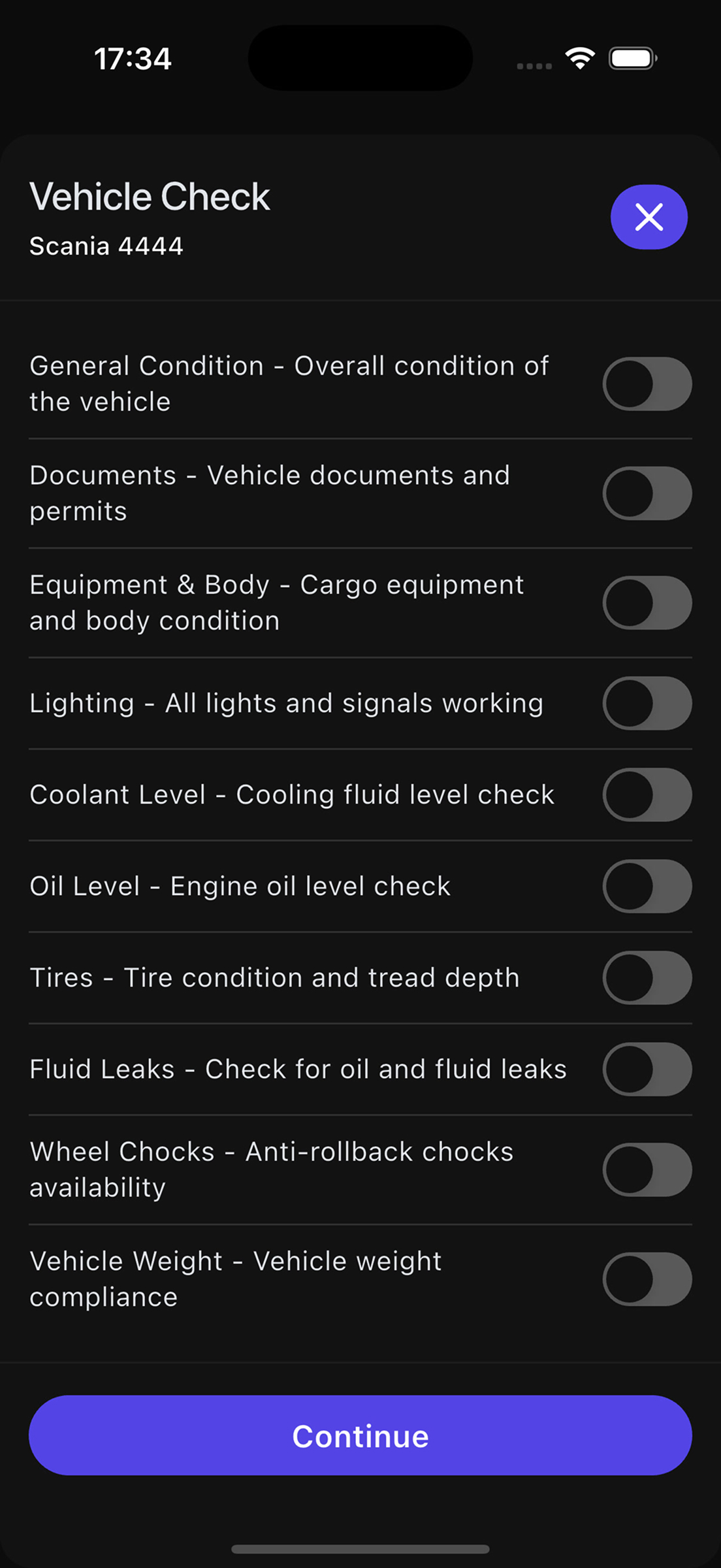
Check all items that are in working condition:
- General Condition — overall condition of the vehicle
- Documents — vehicle documents and permits
- Equipment & Body — cargo equipment and body condition
- Lighting — all lights and signals working
- Coolant Level — cooling fluid level check
- Oil Level — engine oil level check
- Tires — tire condition and tread depth
- Fluid Leaks — check for oil and fluid leaks
- Wheel Chocks — anti-rollback chocks availability
- Vehicle Weight — vehicle weight compliance
What happens next?
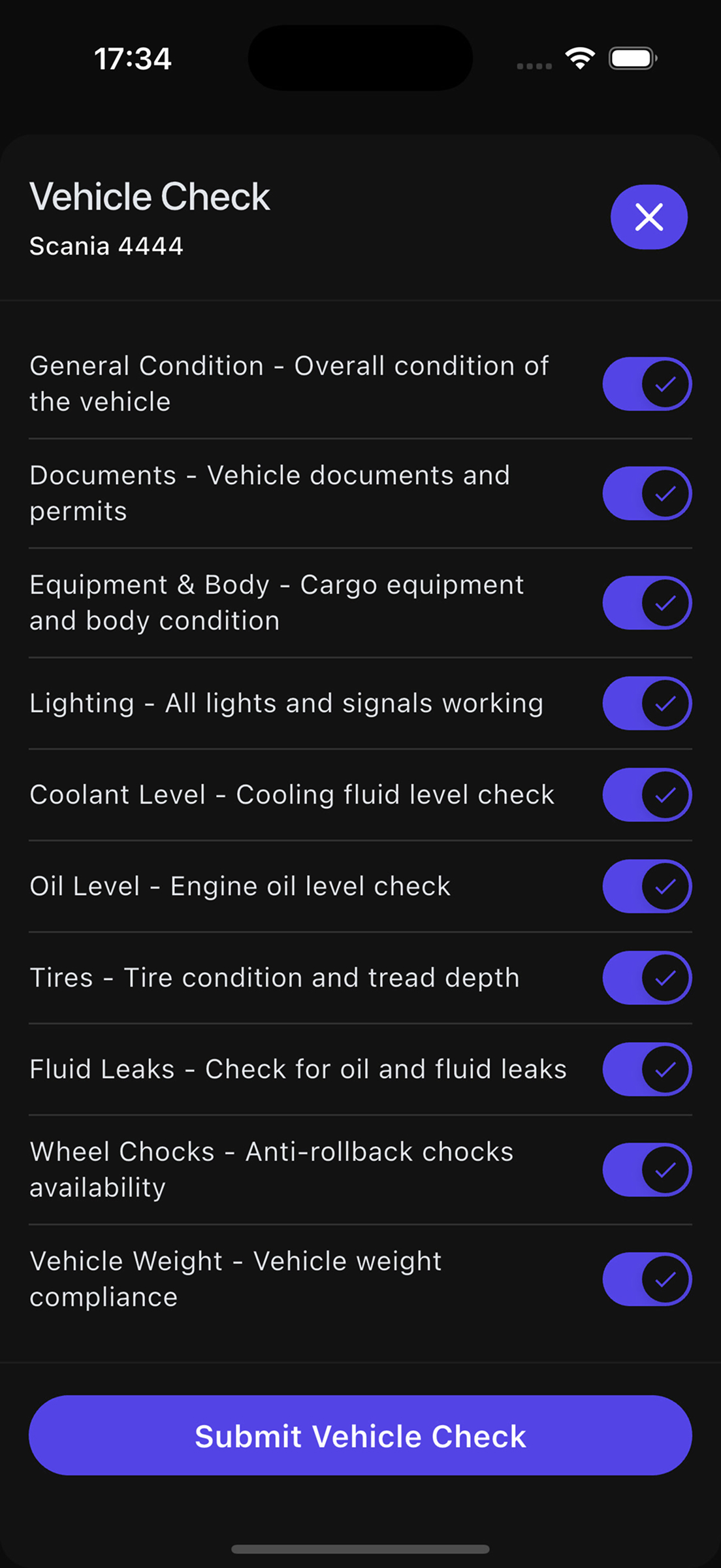
Option A: All items checked
- Tap the "Submit Vehicle Check" button at the bottom of the screen
- Check complete! You will immediately proceed to the order
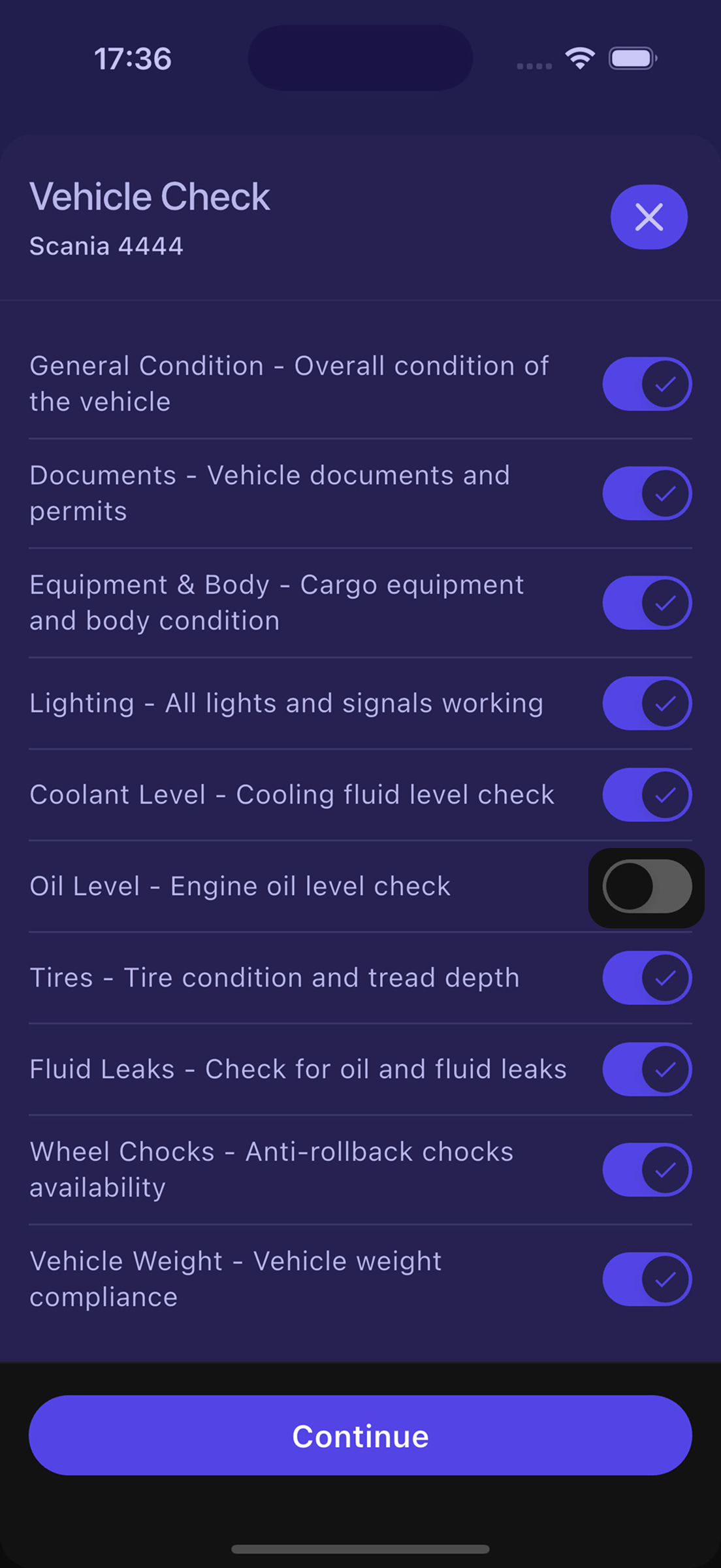
Option B: At least one item NOT checked
- Tap the "Next" button
- You will proceed to Step 2 for mandatory comment entry
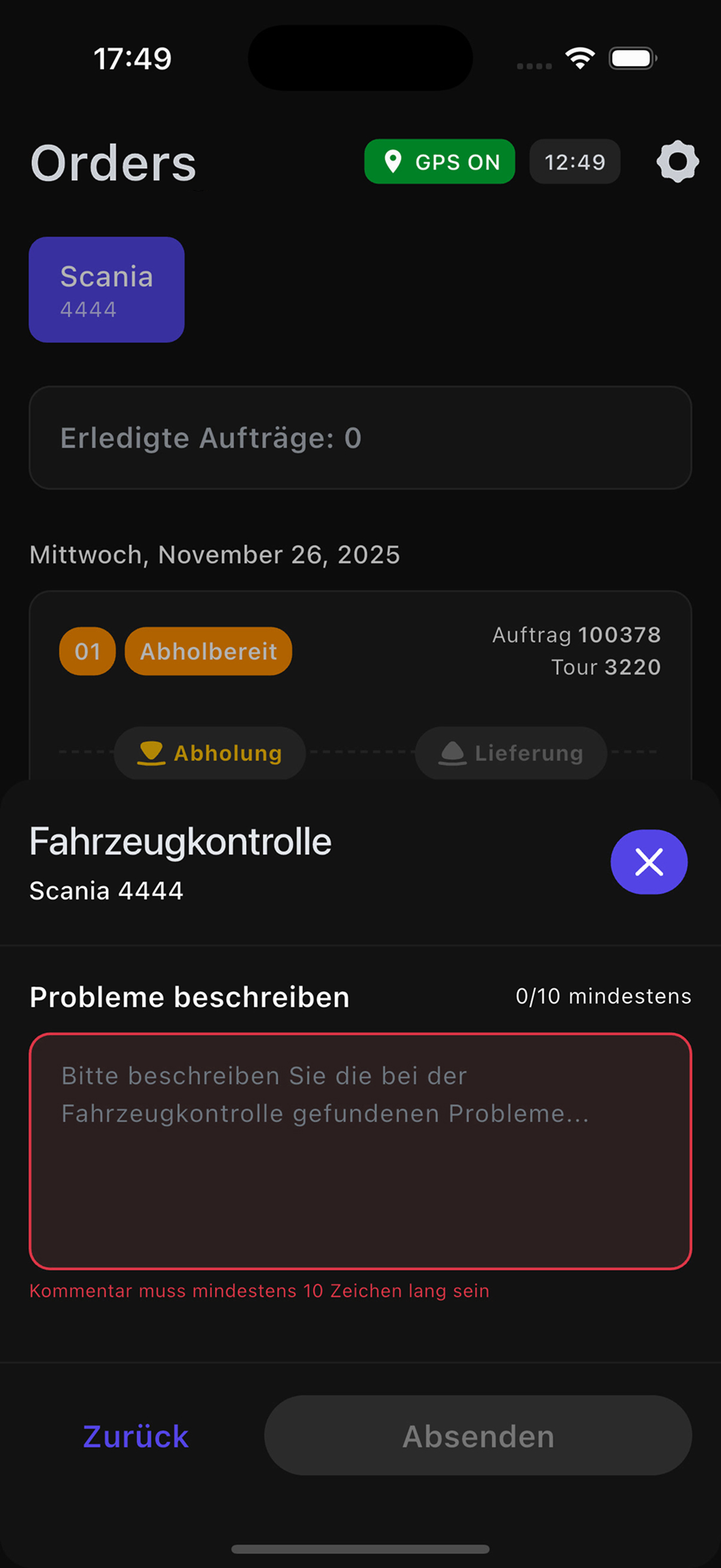
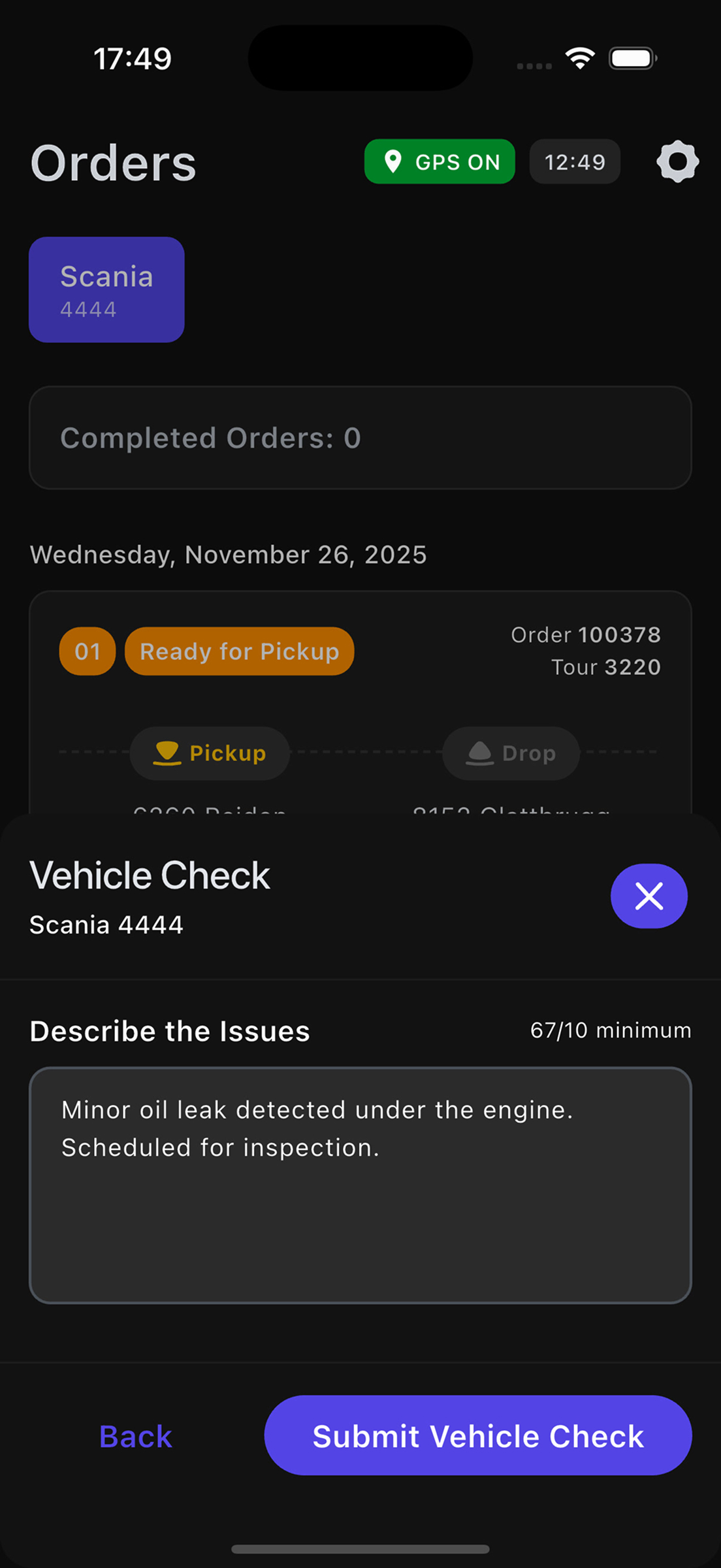
Step 2: Comment (Describe the Issues)
This step appears only if at least one check item was not marked.
Requirements:
- Enter a description of the issues found
- Minimum 10 characters required
- A counter is shown to the right of the header:
0/10 minimum
Example comment:
Brake pads worn, replacement required
After entering the comment (minimum 10 characters), the "Submit Vehicle Check" button will become active.
Tap "Submit Vehicle Check" to complete the check.
Important Points
Check is performed once per day
- After successful submission, you can freely open orders
- The next day, the check will appear again when first opening an order
Without completing Vehicle Check, you won't be able to open any order. The modal window cannot simply be closed — you need to complete the check.
Comment Logic
- Comment is required only if there are unchecked items
- If all items are fine — no comment required
- Minimum comment length: 10 characters
Now you're ready to work with orders!